Microsoft Account or Local Account
In versions of Microsoft Windows up to and including Windows 7 the preferred and indeed for most home users the only way to log in to your computer was with a Local Account, however with the advent of Windows 8 and then Windows 10 Microsoft having been starting to push the concept of a ‘Microsoft Account’
So, what are the main differences between a Microsoft Account or Local Account?
Local Account
With a Local Account, you need to create a new user for each machine you wish to log in to. Also any settings, customisation etc will have to be recreated. on each machine, and you won’t be able to easily work with files on one machine that are stored on another.
Microsoft Account
A Microsoft Account has many advantages over a local account in that it can store and synce data, settings, and log-ins across multiples devices. You can use your Microsoft Account to log in on any PC (even one you don’t own) and so long as you have internet access all your data etc is immediately available. Some of the advantages of using a Microsoft Account as opposed to a local account are:
- Sync and share documents using Microsoft OneDrive.
- Better use of the Cortana personal assistant
- Sync personal settings and preferences across all PC’s that you sign in to.
- Download, install and restore apps from the Microsoft Store.
- Two Factor authentication implementation
- Better Xbox integration
Checking to see if you have a Microsoft Account or Local Account
Many people set up a new PC, and aren’t quite sure whether they have a Microsoft Account or Local Account, but a quick look at the settings page will tell you which one you have.
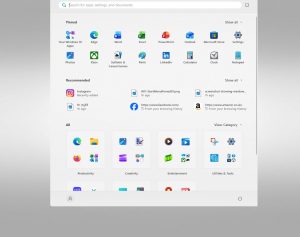
- Click the Start Button
- Select ‘Settings’ from the Start Menu
- Select ‘Accounts’ from the Settings dialog
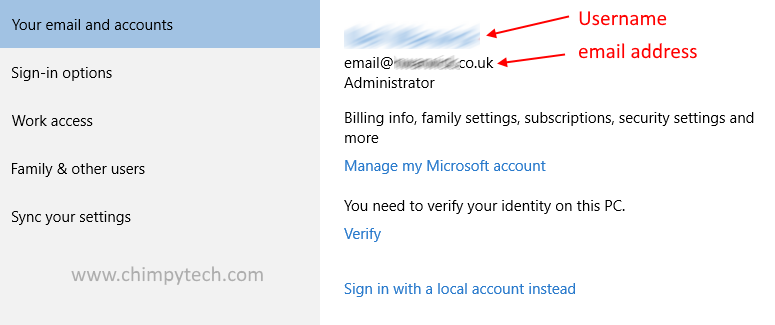
In the right hand panel you will see your name at the top and below this either an email address if you are logged in with a Microsoft Account or the words ‘Local Account’ If you are logged in with a Local Account
Related Posts
Windows 10 Shortcut Keys – Getting around Windows 10 more efficiently
Location Service – How to switch it on and off in Windows 10
Windows 10 Start Menu tweaks – Getting the most from the new and improved Start Menu