Windows 11 Action Centre vs Quick Settings: What’s the Difference?
Windows 11 introduced one of the biggest interface changes in years. The Start Menu moved, the Taskbar was redesigned, and many familiar features were reorganised — including the old Action Centre.
In Windows 10, notifications and quick toggles lived together, however in Windows 11, they’ve been split into Notification Centre and Quick Settings. Whilst the change makes sense once you get used to it, it can be confusing at first.
This guide explains what each panel does, how to open them, and finally, why Microsoft separated them.
🔔 What Is the Windows 11 Notification Centre?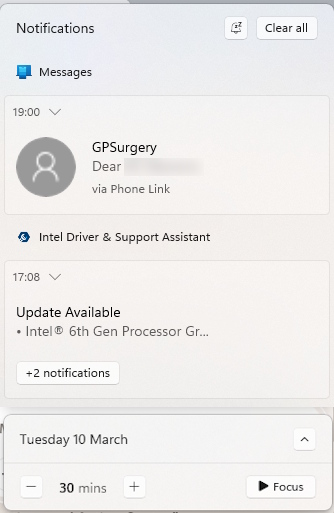
The Notification Centre is now dedicated entirely to both notifications, and calendar. It’s the place where Windows gathers alerts from apps, system messages, reminders, and scheduled events.
How to open it
- Click the Date and Time in the bottom‑right corner of the Taskbar
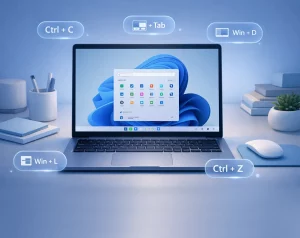
- Or press Win + N
What you’ll find inside
- Notifications grouped by app
- A collapsible calendar
- Buttons to manage notification settings
- Focus Assist options (depending on your setup)
Why it’s useful
By removing all the quick toggles, the Notification Centre is much cleaner and easier to scan. You can focus on messages without digging through brightness sliders or Wi‑Fi controls.
⚙️ What Are Windows 11 Quick Settings?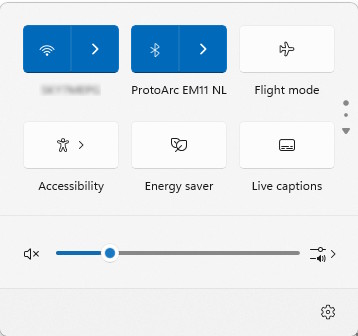
Quick Settings is the new home for fast‑access controls — the things you need to toggle quickly without opening Settings.
How to open it
- Click the network / volume / battery icons on the Taskbar
- Or press Win + A
What you’ll find inside
- Wi‑Fi, Bluetooth, and Airplane Mode
- Brightness and volume sliders
- Battery saver
- Cast and Nearby Sharing
- Accessibility shortcuts
- A fully customisable tile layout
Why it’s useful
Quick Settings is designed to be fast, touch‑friendly, and as a result more flexible. You can’t add or remove tiles however, you can re-arrange them to suit your workflow.
🆚 Action Centre vs Quick Settings: Side‑by‑Side Comparison
| Feature | Notification Centre | Quick Settings |
|---|---|---|
| Purpose | Notifications & calendar | Fast system controls |
| Access | Click date/time or Win + N | Click system icons or Win + A |
| Customisable | Limited | Highly customisable |
| Sliders | No | Yes (brightness, volume) |
| Notifications | Yes | No |
| Touch‑friendly | Moderate | Very |
💡 Why Did Microsoft Split Them?
Microsoft wanted to reduce clutter and make Windows more predictable. Separating “things that notify you” from “things you control” creates two simpler, more focused panels.
It also mirrors mobile operating systems:
- Notifications → one panel
- Quick toggles → another panel
The result is a cleaner, more modern experience.
🛠 Tips for Using Both Panels Effectively
1. Customise Quick Settings
Remove tiles you never use and move your most‑used controls to the top row.
2. Keep notifications tidy
Clearing old alerts makes important ones easier to spot.
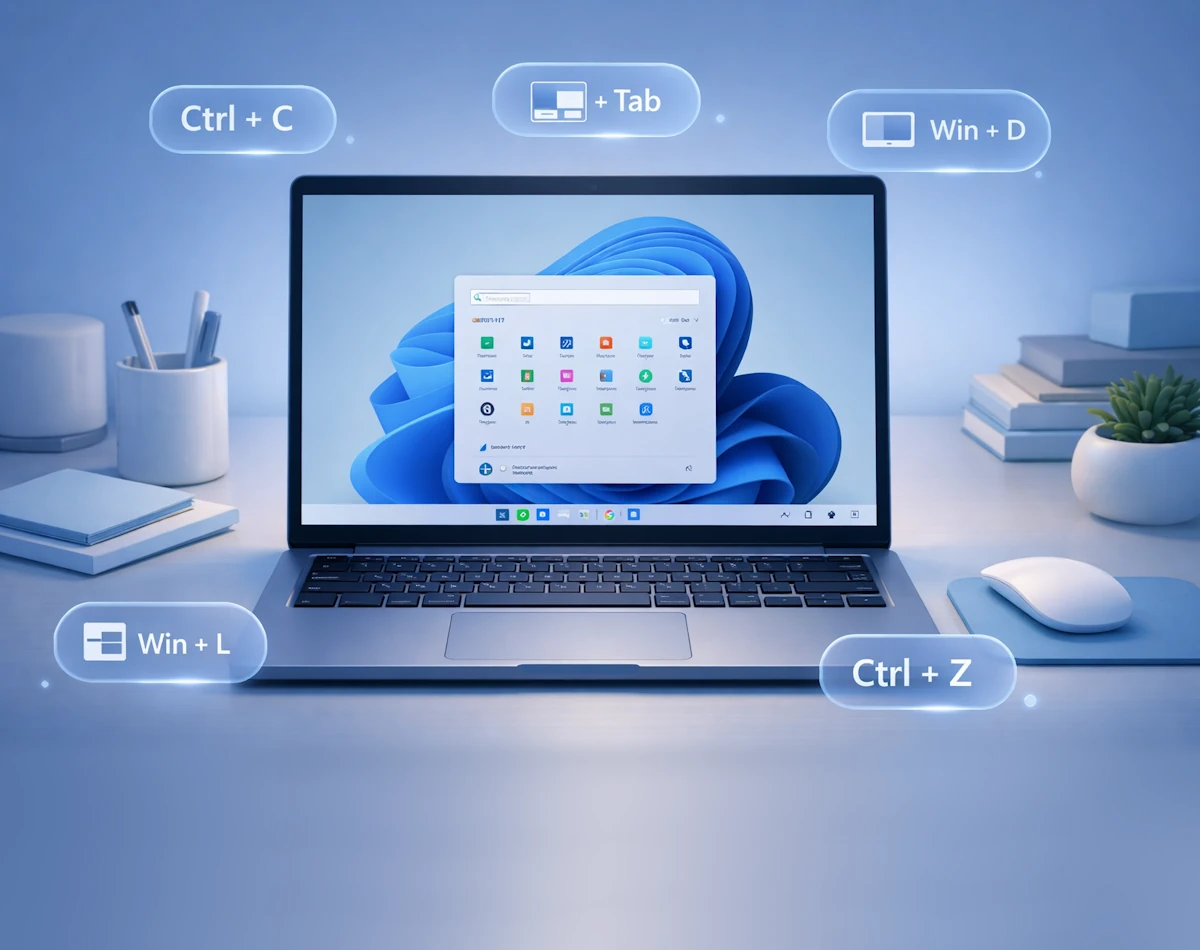
3. Learn the shortcuts
- Win + A → Quick Settings
- Win + N → Notification Centre
These quickly become second nature.
4. Use Focus Assist
If you’re working or gaming, Focus Assist can silence notifications automatically.
For more great Windows 11 tips check out our Index Page