Windows 11 Navigation – Basic Tips
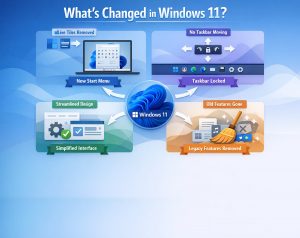
Windows 11 navigation is more refined and simplified compared to previous versions of Windows. Windows 11 introduces a cleaner, more modern interface, but if you’re new to it—or upgrading from Windows 10—some things may feel unfamiliar at first. Fortunately, once you understand the basics, Windows 11 becomes one of the easiest versions of Windows to navigate.
This guide walks you through essential navigation tips using both the mouse and keyboard, allowing you to choose whichever method best fits your workflow..
🖱️ Using the Mouse: Core Navigation Essentials
1. The Start Menu
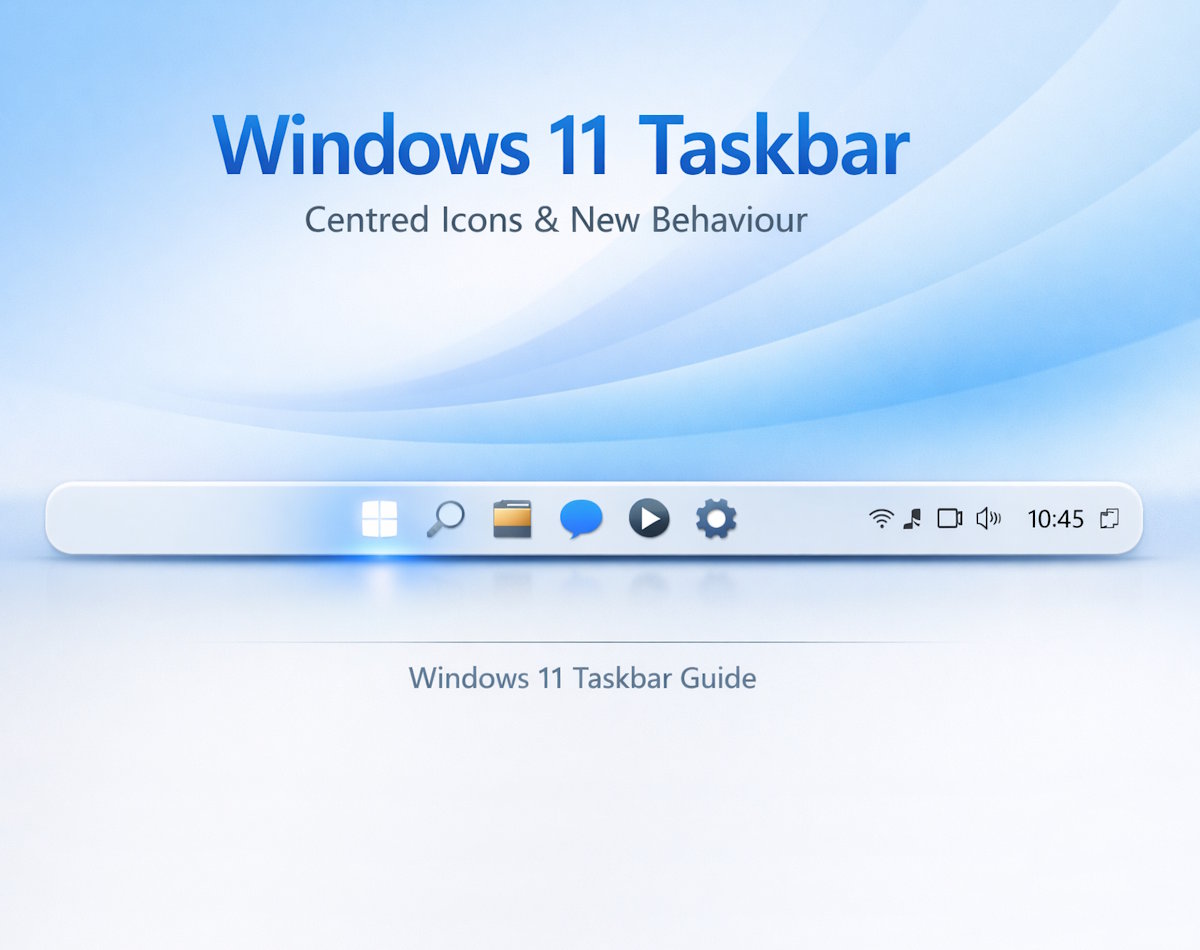
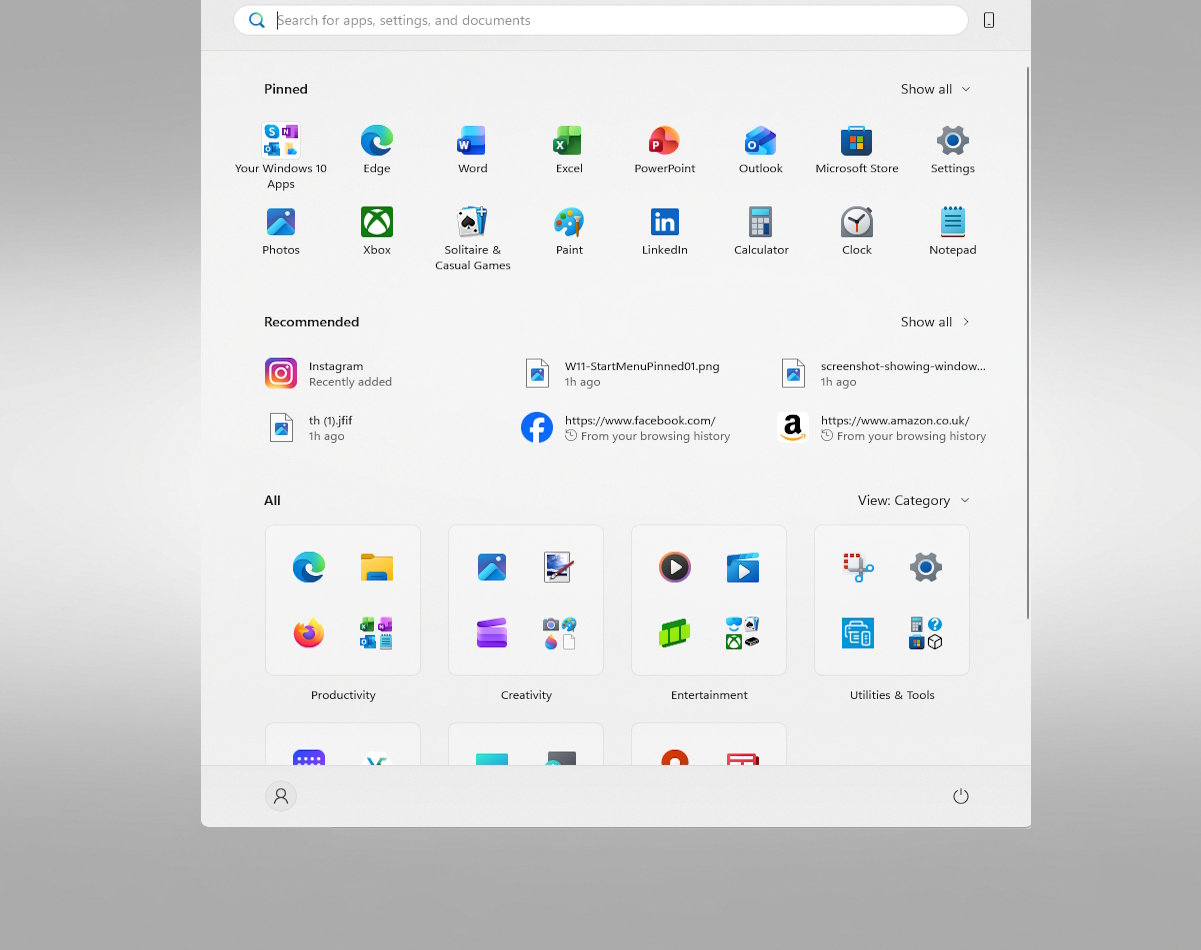
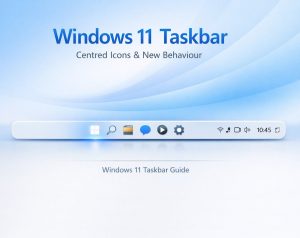
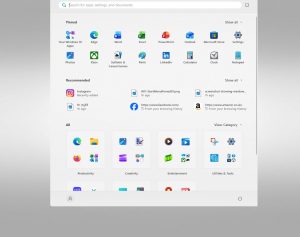
The Start button now sits in the centre of the taskbar (though you can move it back to the left if you prefer).
- Open Start: Click the Start icon on the taskbar.
- Pinned apps: Click any pinned app to launch it.

- All apps: Select All apps to browse everything installed.
- Search: Start typing immediately after opening ‘Search’ to search for apps, files, or settings.
2. Taskbar Basics
The taskbar is your quick‑access hub for open apps and system tools.
- Switch apps: Click any app icon to bring it to the front.
- Right‑click options: Right‑click an app for shortcuts like Close window or Pin to taskbar.
- System tray: Click the arrow on the right to reveal background apps.
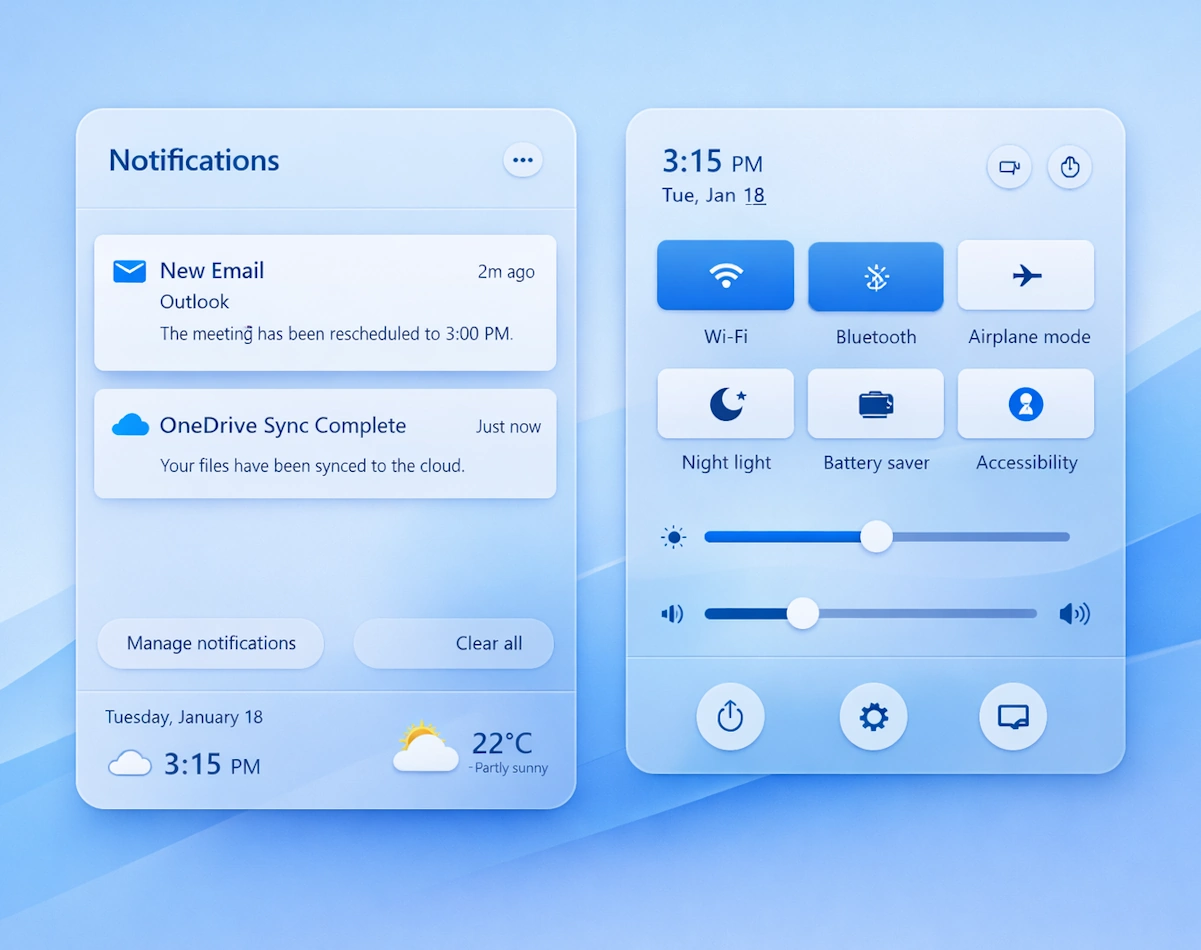
3. Quick Settings
Quick Settings replaces the old Action Centre.
- Open Quick Settings: Click the Wi‑Fi / Volume / Battery cluster on the right of the taskbar.
- From here you can toggle:
- Wi‑Fi
- Bluetooth
- Airplane mode
- Battery saver
- Accessibility options
- Use the slider to adjust volume or brightness.
4. Notifications Panel
Notifications now live separately from Quick Settings.
- Open Notifications: Click the date & time on the taskbar.
- Clear notifications: Use Clear all or dismiss individual alerts.
5. Snap Layouts (Mouse Method)
Snap Layouts make multitasking easier.
- Hover over the Maximise button on any window.
- Choose a layout (side‑by‑side, grid, etc.).
- Windows will guide you through snapping additional apps into place.
⌨️ Keyboard Navigation: Speed Up Your Workflow
Keyboard shortcuts are the fastest way to learn Windows 11 navigation. Here are the essentials every user should know.
1. Start Menu & Search
- Open Start:
Windows key - Search for anything:
Windows key→ start typing - Open Settings:
Windows key + I
2. Switching & Managing Windows
- Switch between open apps:
Alt + Tab - Task View (virtual desktops):
Windows key + Tab - Minimise all windows:
Windows key + M - Restore minimised windows:
Windows key + Shift + M
3. Snap Layouts (Keyboard Method)
- Snap left:
Windows key + Left Arrow - Snap right:
Windows key + Right Arrow - Snap to corners: Use
Windows key + Up/Down Arrowafter snapping left or right.
4. Quick Settings & Notifications
- Open Quick Settings:
Windows key + A - Open Notifications:
Windows key + N
5. File Explorer Navigation
- Open File Explorer:
Windows key + E - Create new folder:
Ctrl + Shift + N - Rename selected item:
F2
🧭 Useful Navigation Tips for Beginners
1. Right‑Click Is Your Friend
Almost every icon, file, or window has a right‑click menu with shortcuts and options.
2. Use the Search Bar for Everything
Windows 11’s search is powerful—use it to find apps, settings, documents, and even web results.
3. Customise the Taskbar
Right‑click the taskbar → Taskbar settings You can toggle:
- Search
- Widgets
- Task View
- System tray icons
4. Learn Snap Layouts Early
They’re one of Windows 11’s best features for productivity.
🎯 Final Thoughts
Windows 11 is designed to be simple, clean, and efficient. Whether you prefer using the mouse, keyboard shortcuts, or a mix of both, mastering these basic Windows 11 navigation techniques will make your experience smoother and more enjoyable.
To see more great windows tips, check out our Index Page