The Windows 11 File Explorer – A Beginner’s Guide
The Windows 11 File Explorer has been refreshed and feels cleaner, faster, and easier to navigate. Although the layout looks familiar, several subtle changes make everyday tasks more efficient. In this guide, we’ll walk through the key features so you can move around your files with confidence.
The New Command Bar
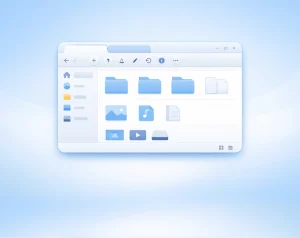
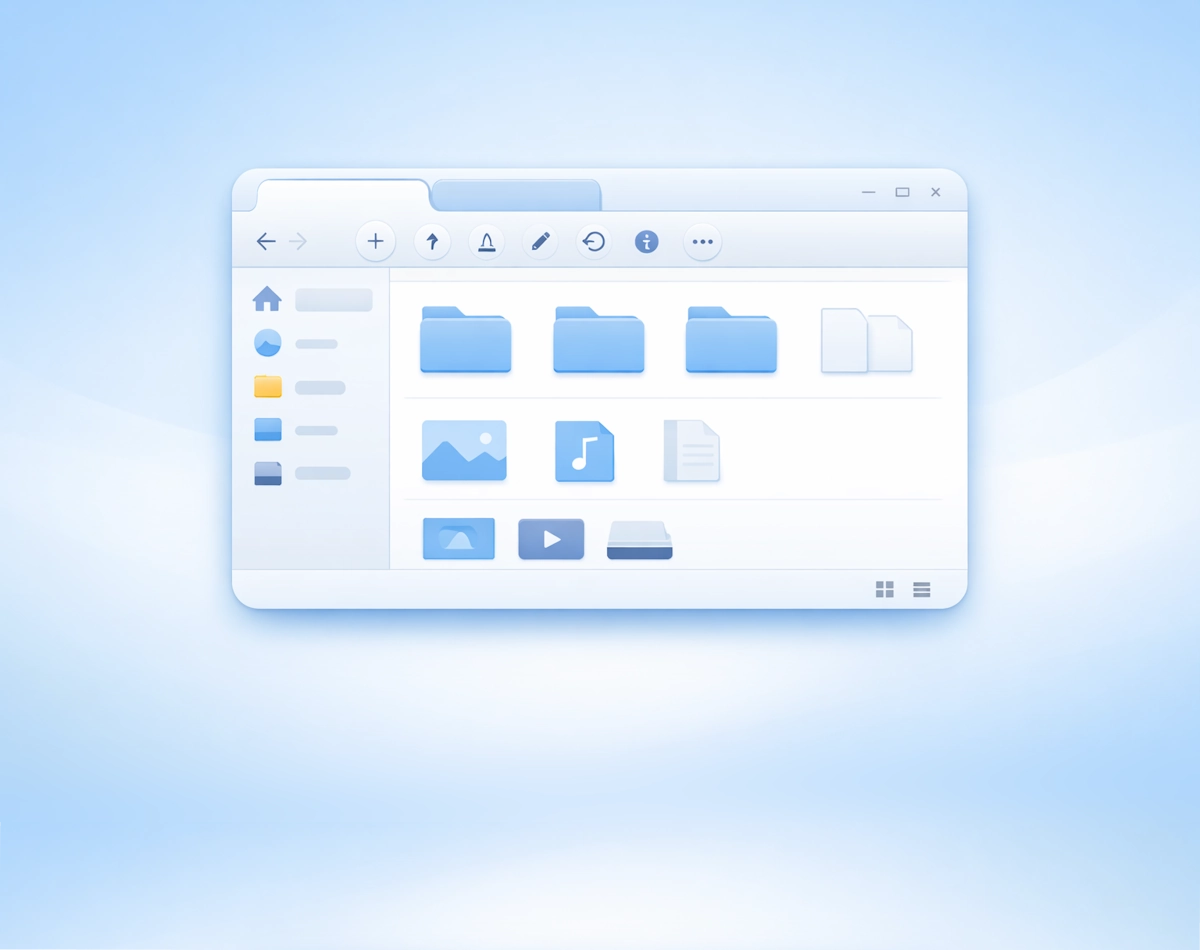
At the top of File Explorer, you’ll notice the new Command Bar. It replaces the old ribbon interface, and as a result, the window feels far less cluttered. The icons are simple, and most common actions—such as copy, paste, rename, and delete—are now only a single click away. Because everything is grouped logically, you’ll spend less time hunting for tools.

Quick Access and Home View
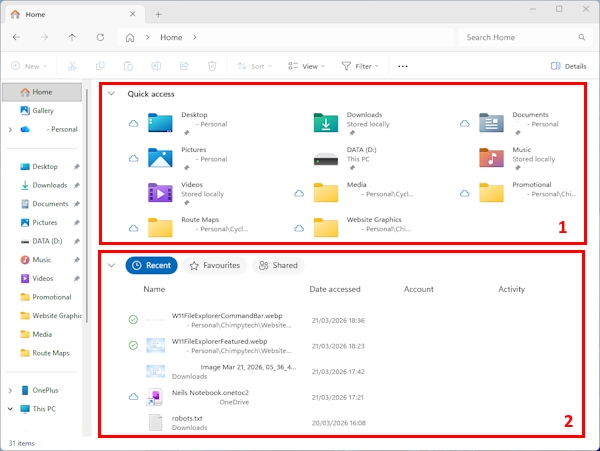
When File Explorer opens, it usually starts on the Home page. This area brings access to your Quick Access Folders (1), Recent files (2), Pinned items, and Frequent folders together. Since Windows updates these sections automatically, you can jump back into your work without digging through folders.
If you want to keep something permanently visible, you can pin it. Just right‑click a file or folder and choose Pin to Quick Access. From then on, it appears in the sidebar for fast access.
The Navigation Pane
On the left side, the Navigation Pane helps you move between locations. It includes your main folders, cloud storage, and connected drives. Although the layout is simple, it’s also flexible. You can collapse sections, reorder items, or hide areas you don’t use. This makes the Explorer feel more personal and less overwhelming.
Tabs for Easier Multitasking
One of the most welcome additions is File Explorer tabs. Instead of opening multiple windows, you can keep everything in one place. Simply click the + icon to open a new tab. Because tabs behave like those in a web browser, switching between locations feels natural and quick.
Improved Context Menus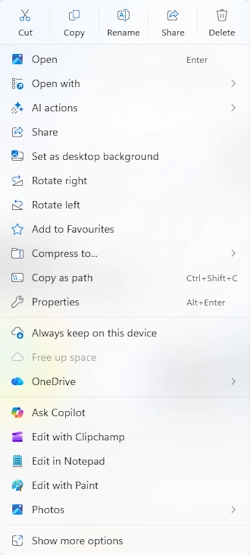
Right‑click menus have been redesigned too. They’re generally shorter, cleaner, and easier to scan. As part of keeping the menus shorter the option available ar chosen more carefully.
Some frequently used options such as Cut, Copy, Rename, Share and Delete are moved to the top keeping them consistent.
However, if you need the full classic menu, you can still access it. Just click Show more options at the bottom. This small change keeps the interface tidy while still giving you full control.
OneDrive Integration
Windows 11 places OneDrive front and centre. As a result, syncing files between devices is much smoother. You’ll see status icons next to each file, showing whether it’s stored locally or in the cloud. This makes it easier to manage space and avoid confusion.
Search That Works Faster
The search box at the top‑right now delivers results more quickly. It begins scanning as soon as you start typing. Because of this, you can find documents, apps, and settings without leaving File Explorer. It’s a small improvement, but it saves time throughout the day.
Customising Your View
Windows 11 still offers multiple layout options. You can switch between list, details, tiles, and icons with a single click. Additionally, sorting and grouping tools remain available. These features help you organise large folders so you can spot what you need more easily.
Final Thoughts
Although the Windows 11 File Explorer hasn’t changed dramatically, the refinements make a noticeable difference. The interface is cleaner, the tools are easier to reach, and the overall experience feels more modern. Once you get used to the new layout, you’ll likely find your workflow becomes smoother and more intuitive.
For more great Windows 11 tips check out our Index Page