Layout, Behaviour, and Those Centred Icons
The Taskbar has always been one of the most recognisable parts of Windows, but Windows 11 gives it its biggest redesign in years. Whether you’re upgrading from Windows 10 or setting up a new PC, understanding how the Taskbar behaves will help you get the most out of your desktop.
⭐ What’s New in the Windows 11 Taskbar?
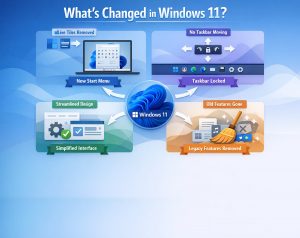
Windows 11 introduces a cleaner, more minimal Taskbar with a consequently strong focus on simplicity and touch‑friendliness. The most noticeable change is the centred layout, but there are several behavioural tweaks worth knowing about.
Key changes include:
- Centred Start button as well as app icons
- New animations and hover effects
- A simplified system tray
- A redesigned Quick Settings panel
- A more consistent look across apps
🎯 Centred Icons: Why Microsoft Changed the Layout
Unquestionably, one of the first things users notice is that the Start button and pinned apps now sit in the centre of the Taskbar. This is, of course, a deliberate design choice inspired by:
- Modern operating systems (ChromeOS, macOS)
- Touchscreen ergonomics
- Making the Start menu easier to reach on wide screens
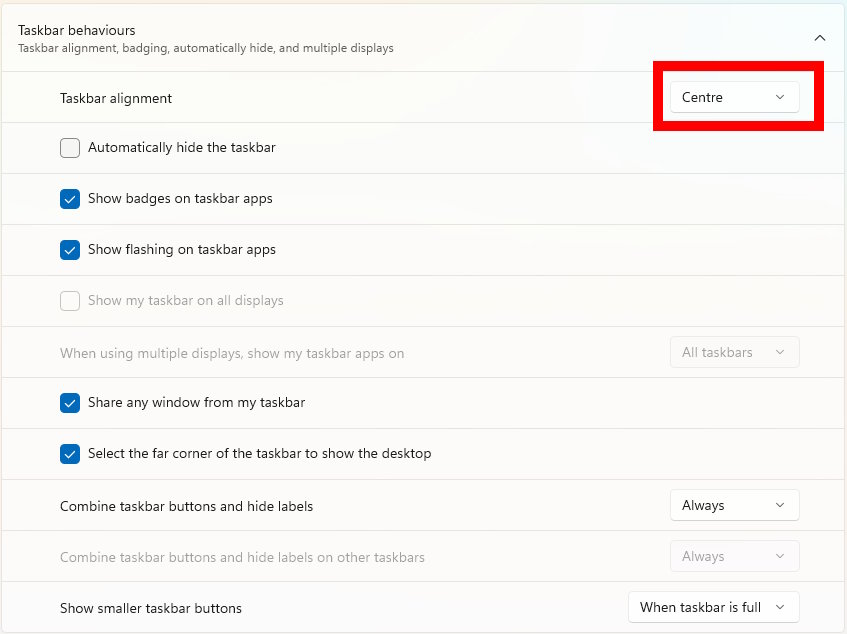
If you prefer the classic left‑aligned layout, you can switch back easily:
Settings → Personalisation → Taskbar → Taskbar behaviours → Taskbar alignment
Choose Left to restore the traditional Windows feel.

⚙️ Taskbar Behaviour in Windows 11
Windows 11 also changes how the Taskbar behaves in several subtle ways. Some features from Windows 10 have been removed or reworked, while others have been added to streamline the experience.
🔄 App Grouping and Window Previews
Windows 11 always groups multiple windows from the same app; also, by hovering over the icon, thumbnail previews are displayed. Unlike older versions of Windows, you can’t disable grouping.
🪟 Drag‑and‑Drop Support
Drag‑and‑drop was originally missing; it however, returned after early feedback:
- Drag files onto an app icon to open them in that app
- Drag apps to the Taskbar to pin them
🔔 System Tray Changes
The system tray is more restricted:
- Some icons can’t be moved or removed
- The clock, network, and volume icons are fixed
- Third‑party apps have limited customisation options
🪟 Taskbar on Multiple Displays
Windows 11 additionally allows the Taskbar to appear on all connected monitors:
Settings → Personalisation → Taskbar → Taskbar behaviours → Show my taskbar on all displays
You can choose whether app icons appear:
- On all taskbars
- Only on the main display
- Only on the display where the window is open
⚡ Quick Settings, Notifications, and the Calendar
Windows 11 also splits the old Action Center into two separate areas:
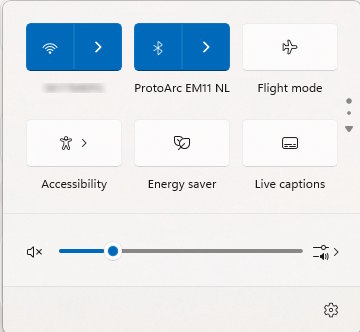
🔧 Quick Settings
Clicking the network/volume/battery icons in turn opens a compact panel for:
- Wi‑Fi
- Bluetooth
- Airplane mode
- Brightness and volume slider
🔔 Notifications
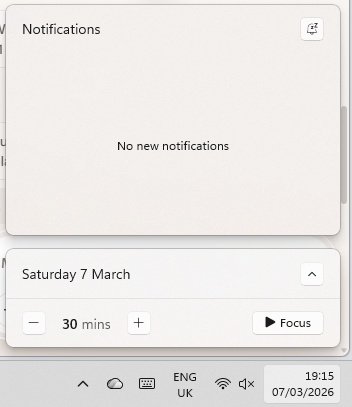
Click the clock to open the Notification Center, which also includes:
- Calendar view
- Notification history
- App‑specific alerts
🎨 Customising the Taskbar
The Windows 11 taskbar also offers several personalisation options:
Taskbar Items
You can toggle built‑in features on or off:
- Search
- Task View
- Widgets
- Chat (Microsoft Teams)
Taskbar Corner Icons
Control which icons appear next to the system tray, such as:
- Pen menu
- Touch keyboard
- Virtual touchpad
Taskbar Colour and Transparency
Found under:
Settings → Personalisation → Colours
You can enable:
- Accent colour on the Taskbar
- Transparency effects
🧭 Start Menu and Taskbar Integration
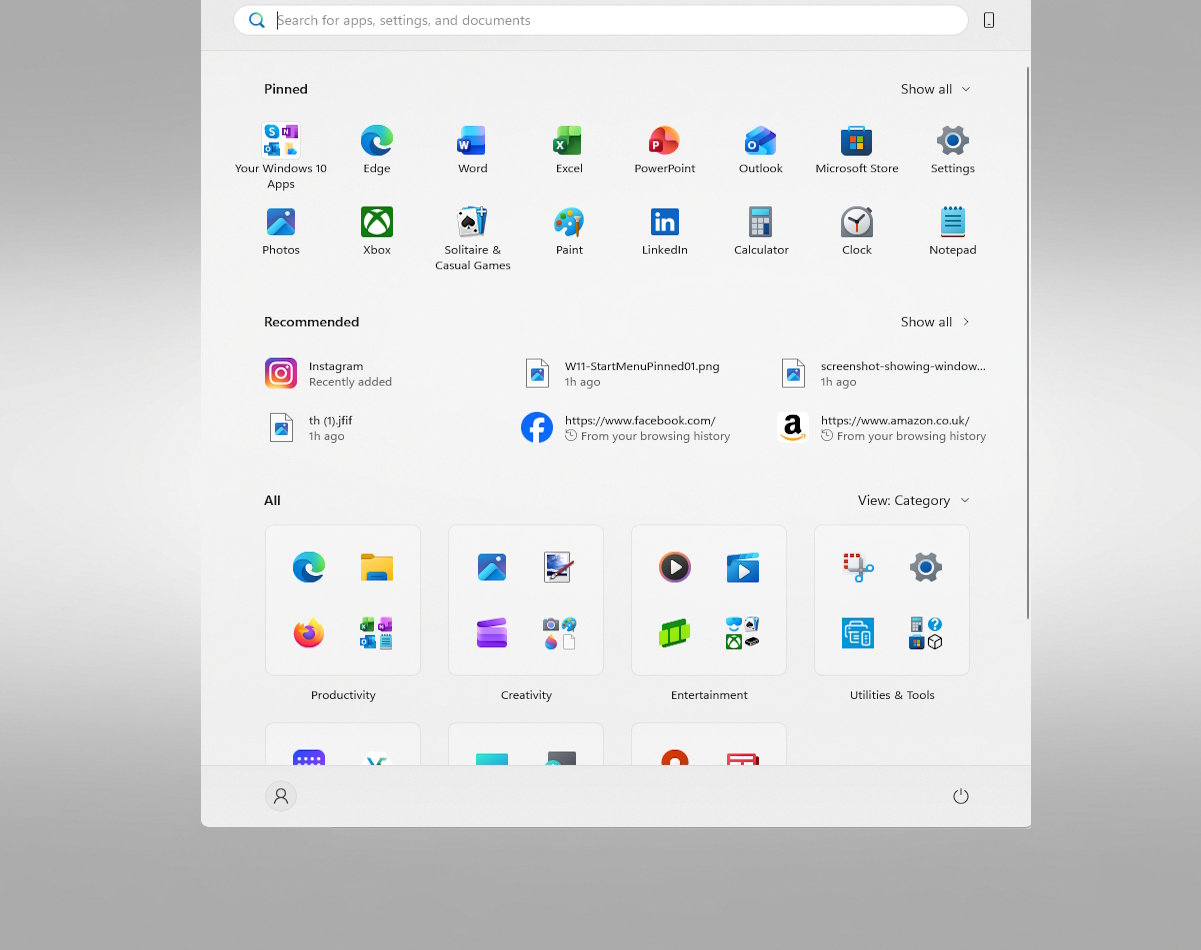
The Start menu is similarly now a compact, centred panel with:
- Pinned apps
- Recommended files
- Account and power options
It opens directly above the Taskbar, and its position shifts automatically if you move the Taskbar alignment.
📌 Limitations Compared to Windows 10
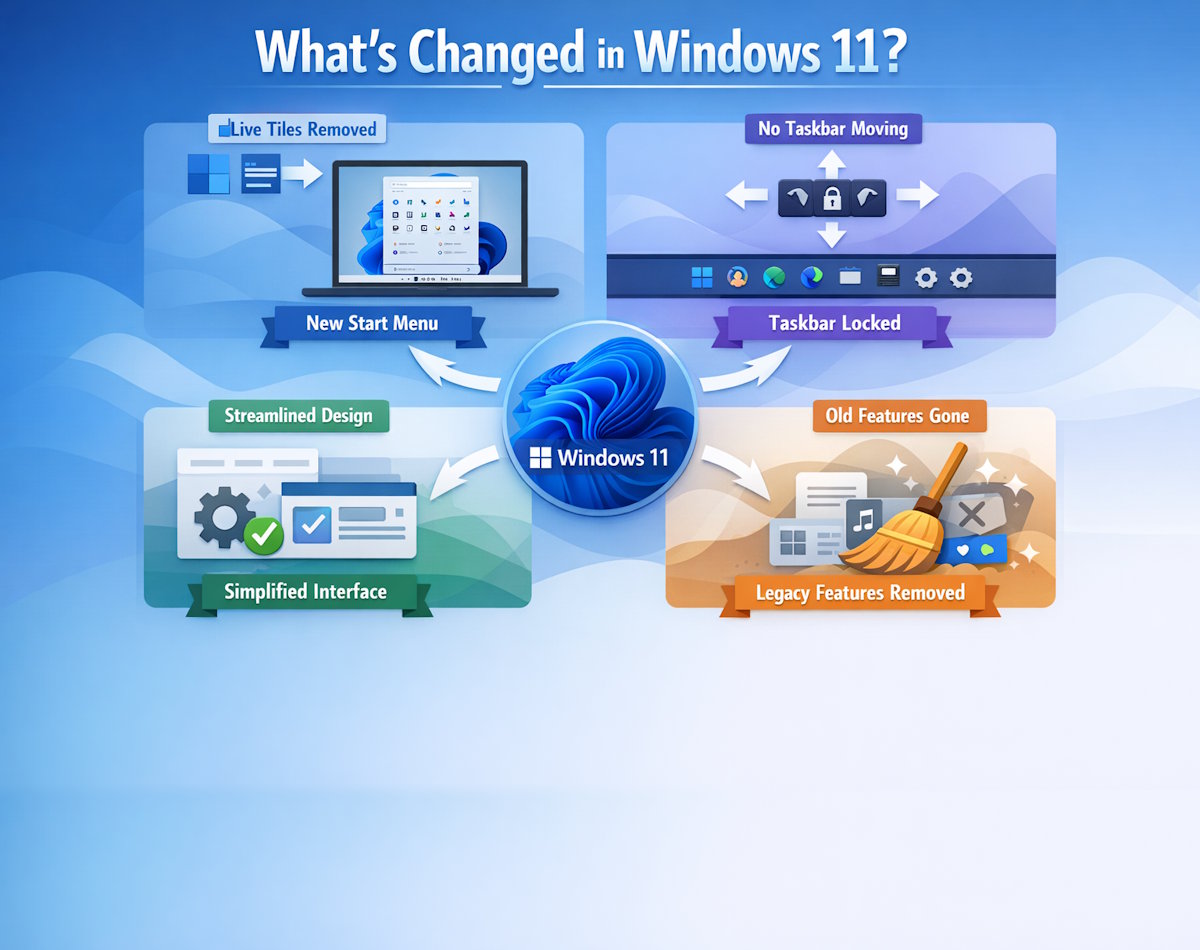
As a result of the update, some features from Windows 10 are missing or changed:
- You can’t move the Taskbar to the top or sides of the screen
- No ungrouping of app icons
- Limited system tray customisation
- No resizing of the Taskbar
Microsoft has restored some features over time, but the overall design philosophy remains more locked‑down than previous versions.
✅ Summary
The Windows 11 Taskbar is designed to be cleaner, more modern, and thus more consistent across all devices. While some long‑standing customisation options have been removed, the new layout offers a streamlined experience that works well on both traditional PCs and touch‑enabled devices.
If you’re coming from Windows 10, the centred icons and simplified behaviour may take a little getting used to, but with a few tweaks you can tailor the Taskbar to suit your workflow.
For more great Windows 11 tips and advice check out our Index Page