Windows 11 Settings App Overview
The Windows 11 Settings App brings a fresh, modern approach to personalisation and system management, and nowhere is that more obvious than in the redesigned Settings app. Whether you’re new to Windows 11 or upgrading from Windows 10, the updated layout makes it easier to find what you need, customise your experience, and understand how the operating system is organised.
This overview walks you through the new structure, the major categories, and the design changes that make the Windows 11 Settings app more intuitive than ever.
🌟 A More Modern and Consistent Design
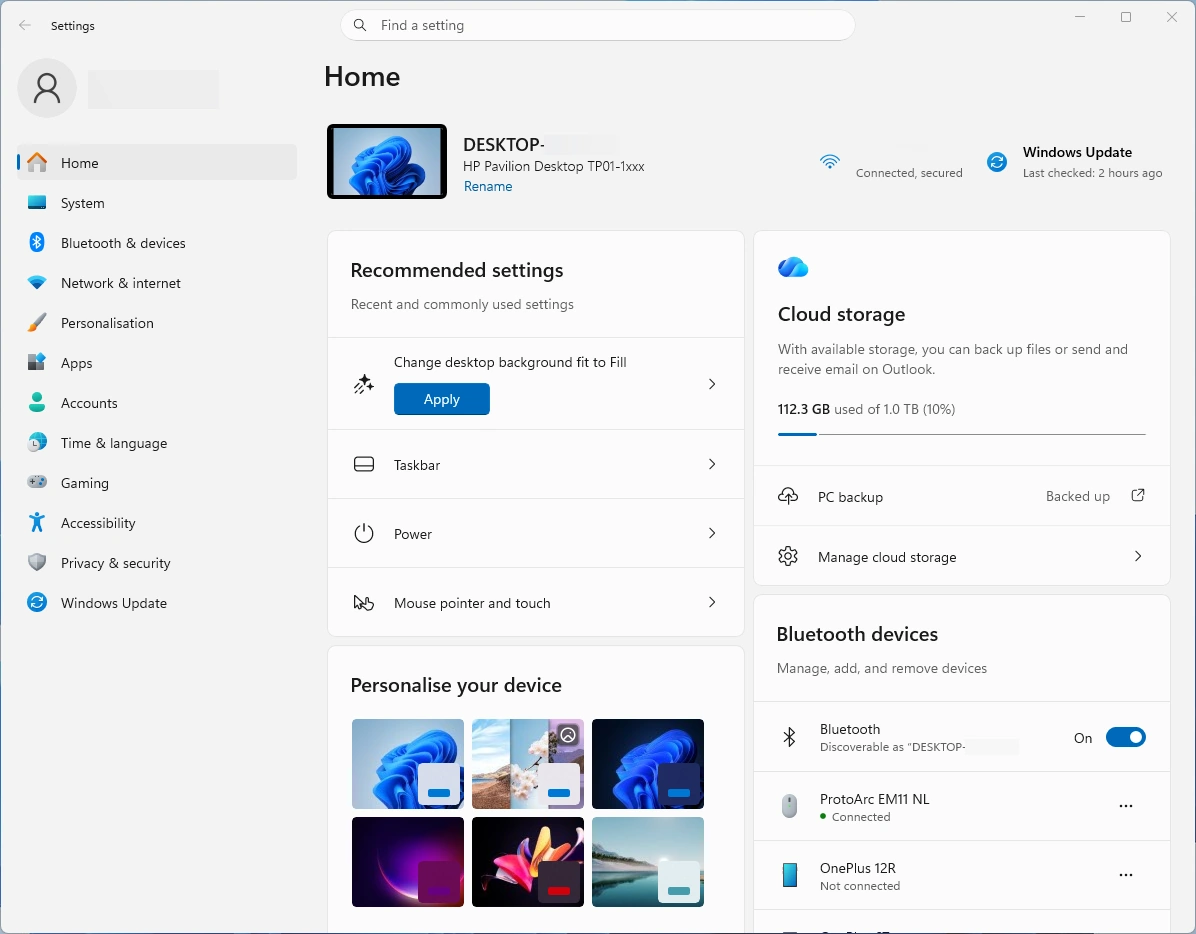
The first thing you notice when opening Settings in Windows 11 is the visual overhaul:
- A cleaner, more spacious layout as well as improved typography
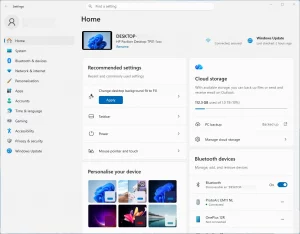
- A persistent left‑hand navigation panel
- Smooth transitions and subtle animations
- Clearer separation between categories and sub‑pages
- A design language that matches the rest of Windows 11 (rounded corners, acrylic backgrounds, Fluent icons)
This isn’t just cosmetic however, the new layout reduces the number of clicks needed to reach common settings and keeps you oriented as you move through different sections.
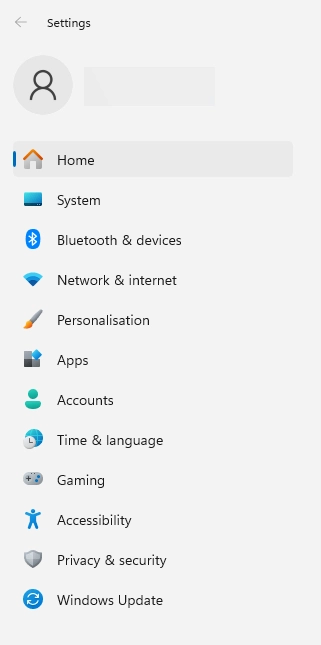
📌 Left‑Hand Navigation: Your New Control Centre
Windows 11 introduces a permanent sidebar that lists the main categories, and as a result:
- You can jump between sections instantly
- You always know where you are
- Sub‑pages appear on the right without collapsing the main menu
This is a major usability improvement over Windows 10’s collapsing menus.
🗂️ Settings Categories in Windows 11
Here’s a breakdown of each major category and what you’ll find inside.
1. System
Your hub for core device behaviour. Includes:
- Display settings
- Sound
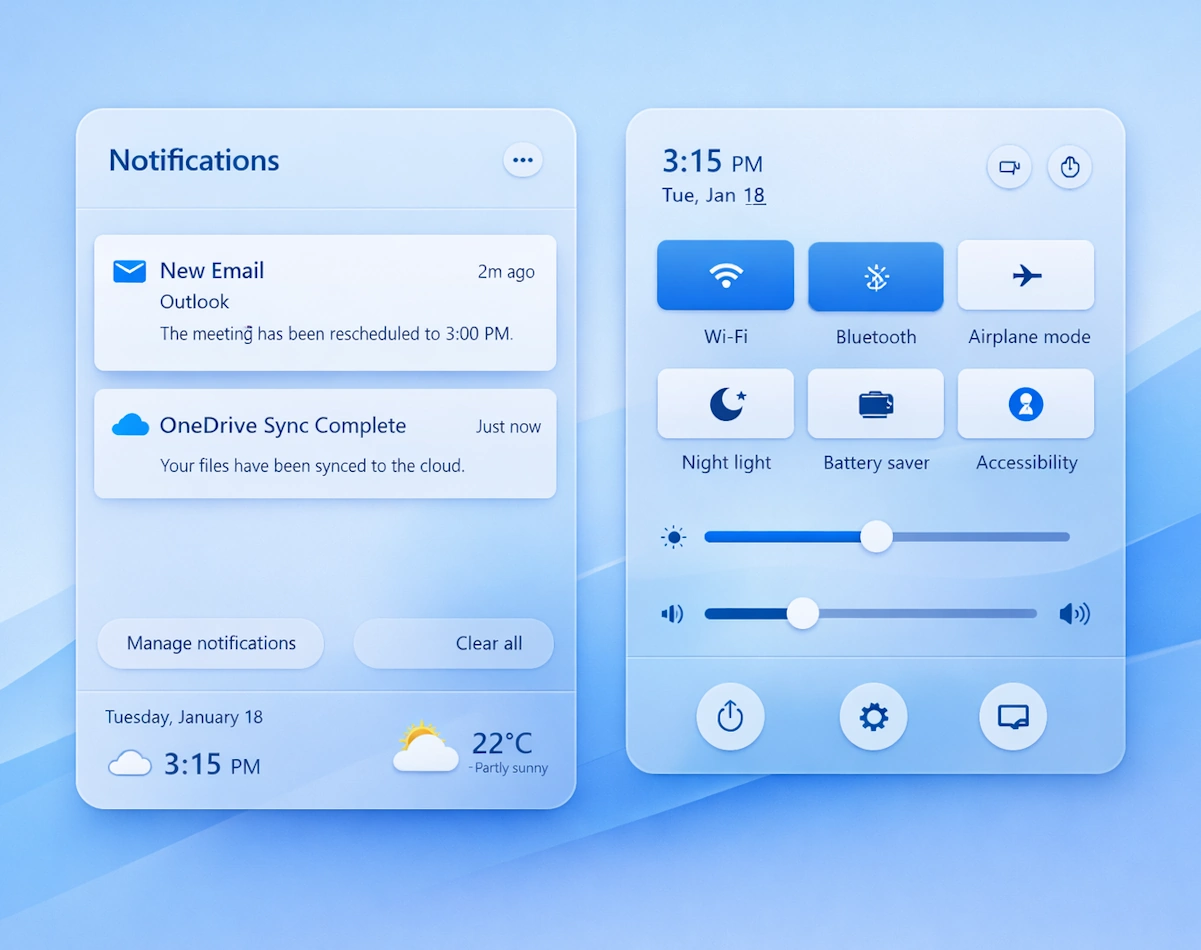
- Notifications
- Power & battery
- Storage
- Multitasking
- Remote Desktop
- Clipboard
- About (device info)
This is where most users spend their time, especially when setting up a new PC.
2. Bluetooth & Devices
This section deals with everything that connects to your PC, and includes:
- Bluetooth devices
- Printers & scanners
- Cameras
- Mouse, keyboard, and pen
- AutoPlay
- USB settings
In addition, Windows 11 improves device pairing with clearer prompts and faster detection, resulting in a smoother user experience.
3. Network & Internet
All connectivity options are also now gathered in one place and include:
- Wi‑Fi
- Ethernet
- VPN
- Mobile hotspot
- Proxy
- Data usage
The data usage page is also more visual and easier to understand than the previous incarnation in Windows 10.
4. Personalisation
This is the heart of Windows 11 customisation, and covers the following:
- Background
- Colours
- Themes
- Lock screen
- Start menu
- Taskbar
- Fonts
This section has been reorganised in order to make visual customisation more accessible, especially for new users.
5. Apps
Replacing the old ‘Programs and Features’ this section also allows users to manage installed apps and system defaults.
- Installed apps
- Default apps
- Startup apps
- Offline maps
- Optional features
- Advanced app settings
Windows 11 also introduces improved default app controls, thus giving users more transparency.
6. Accounts
Your Microsoft account and user profiles can all be managed in this section and thus includes:
- Your info
- Email & accounts
- Sign‑in options
- Family & other users
- Windows backup
- Work or school accounts
The integration with cloud backup is also more prominent here.
7. Time & Language
Regional and input settings are also now gathered here, including:
- Date & time
- Language & region
- Typing
- Speech
The language management interface is also cleaner and easier to navigate.
8. Gaming
A dedicated space for Windows gaming features, including:
- Xbox Game Bar
- Captures
- Game Mode
- Graphics settings
Windows 11 also places more emphasis on performance tuning for games.
9. Accessibility
Formerly “Ease of Access,” this is now more logically grouped and includes:
- Vision settings (text size, contrast, magnifier)
- Hearing settings (audio, captions)
- Interaction settings (keyboard, mouse, speech)
The new layout makes accessibility options easier to find as well as understand.
10. Privacy & Security
Security settings, app permissions, and encryption are just a few of the options gathered in this set. The full set includes:
- Windows Security
- App permissions
- Device encryption
- Find my device
- Diagnostic data
This section is clearer and consequently more transparent than in previous versions.
11. Windows Update
Whilst not strictly speaking a set of customisation settings, various options for configuring Windows Update can be found here, including:
- Switching Updates on /off
- Pausing Updates
- Update History
- Advanced Options
🎯 Why the New Layout Matters
The redesigned Settings app isn’t just a facelift it has also been built to:
- Reduce friction for new users
- Make personalisation more discoverable
- Improve accessibility
- Provide clearer system information
- Align with Windows 11’s overall design philosophy
For a deeper look into the various sections of the Windows 11 Settings App check out our Index Page