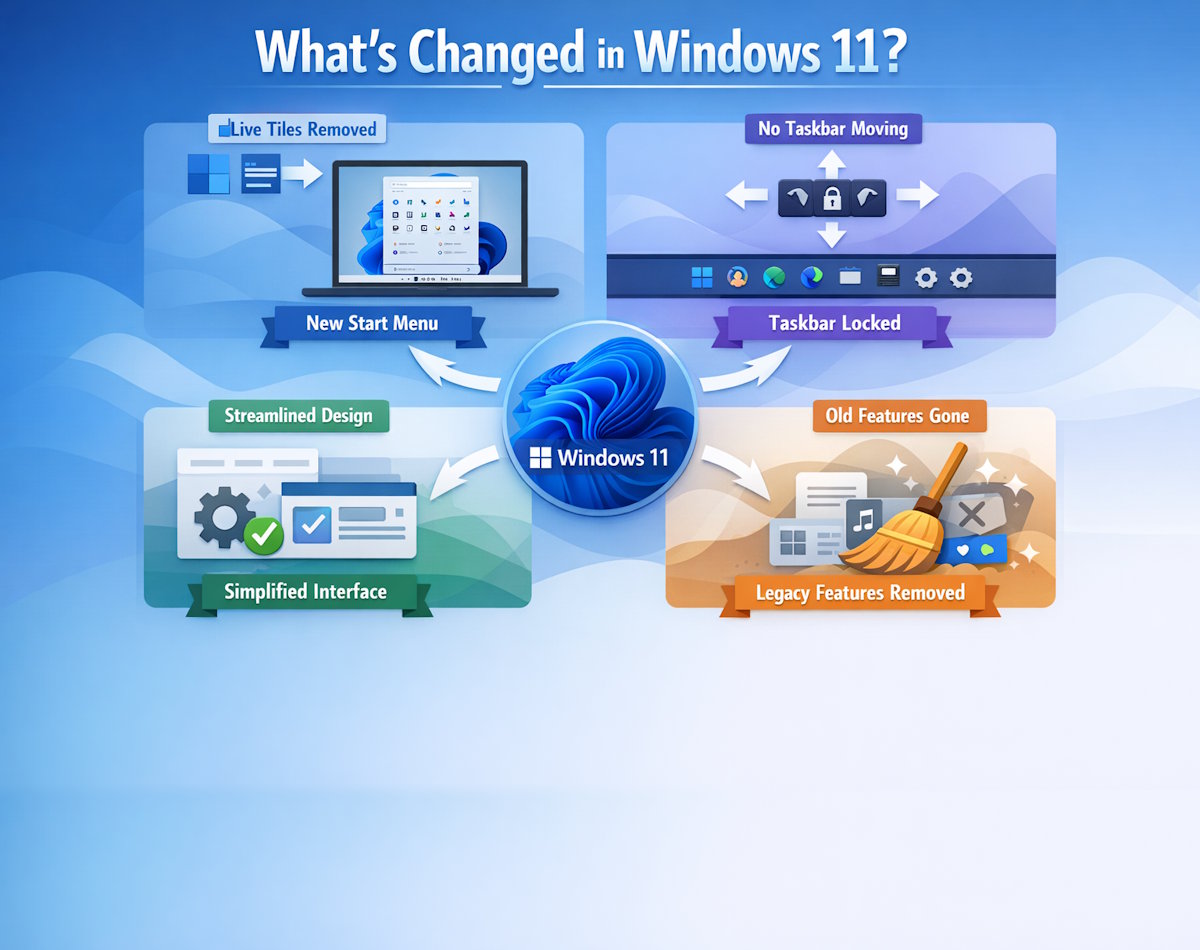
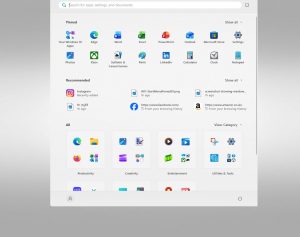
The Windows 11 Start menu is designed to be cleaner and more focused than previous versions, giving you quick access to your apps, recent files, and a powerful system‑wide search. It sits in the centre of the taskbar by default, but you can move it back to the left if you prefer.
The Start menu is divided into three key areas:
- Pinned apps — your personalised app launcher
- Recommended — recently opened files and suggestions
- Search — a universal search bar for apps, settings, files, and web results
Pinned Apps
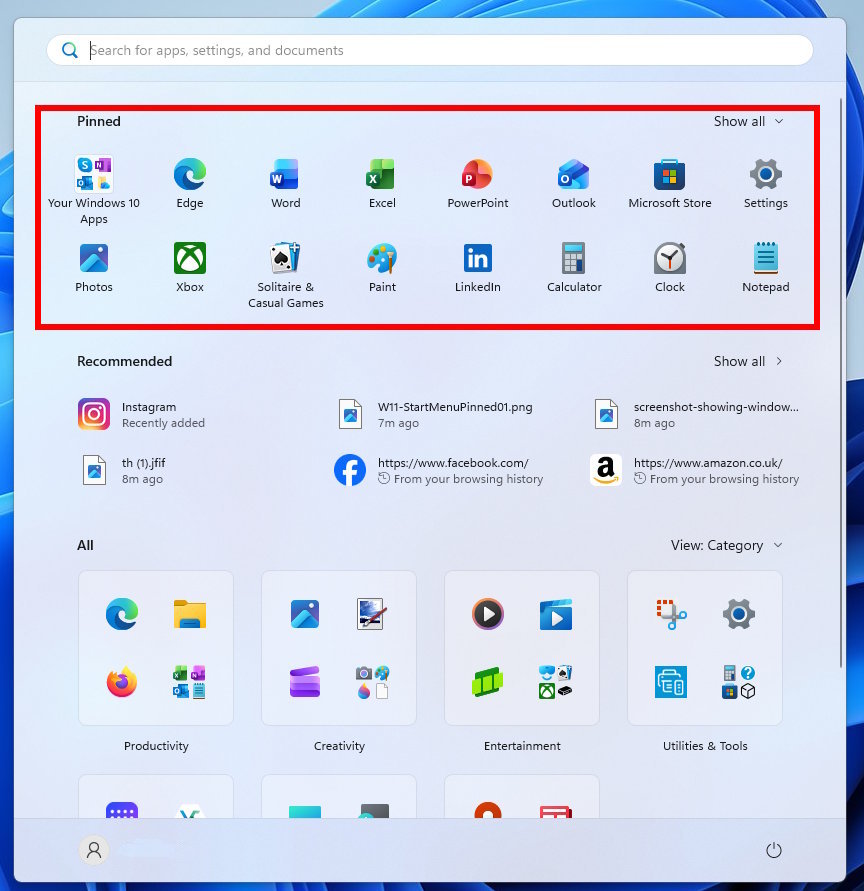
Pinned apps form the top half of the Start menu and act as your quick‑launch grid.
What pinned apps do
Pinned apps give you one‑click access to the tools you use most. The grid layout is similar to a mobile home screen, making it easy to organise visually.
How to pin and unpin apps
- Pin an app: Right‑click an app in the Start menu or taskbar → Pin to Start.
- Unpin an app: Right‑click a pinned tile → Unpin from Start.
Rearranging pinned apps
You can drag apps around the grid to create your own layout. Windows 11 also supports folders:
- Drag one pinned app on top of another to create a folder.
- Open the folder to rename it or add/remove apps.
Callout Box — Quick Tip
Quick Tip: If you want more space for pinned apps, switch the Start layout to More pins in Settings → Personalisation → Start.
Recommended Section
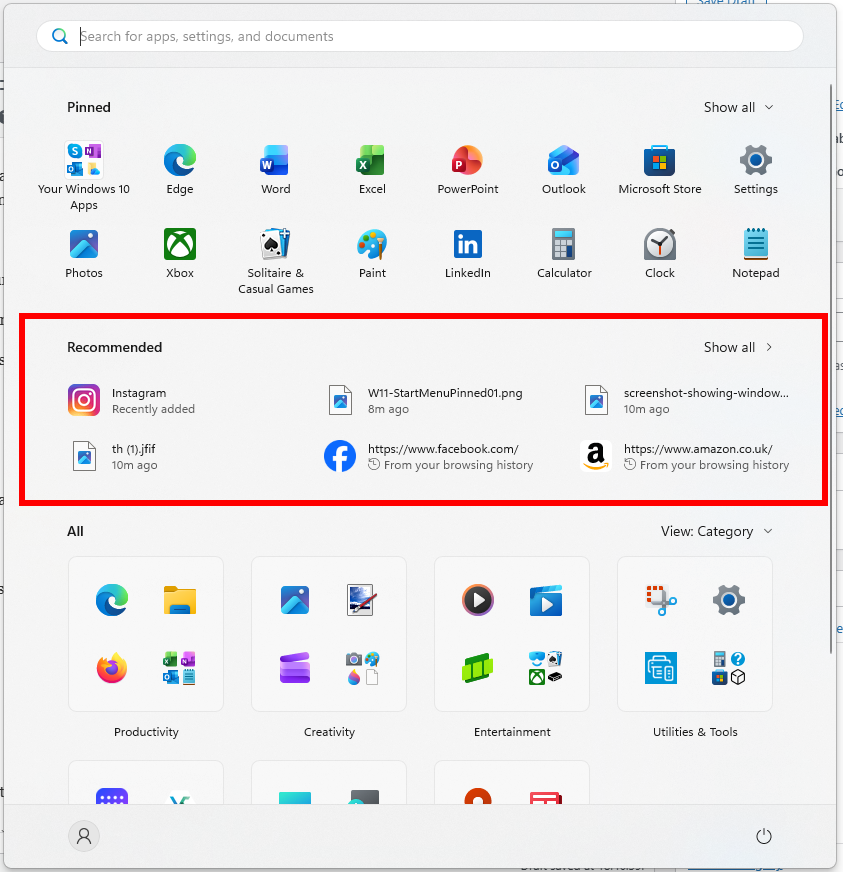
The Recommended area sits beneath your pinned apps and shows recently opened files, recently installed apps, and suggestions from Windows.
Why the Recommended section matters
This section is ideal for jumping straight back into work without browsing through File Explorer. It’s especially useful for documents, images, and downloads you’ve just been using.
Customising recommendations
You can control what appears here:
- Open Settings
- Go to Personalisation → Start
- Toggle:
- Show recently added apps
- Show most used apps
- Show recently opened items
Callout Box — Customise
Customise: Turn off all three toggles if you prefer a cleaner, more private Start menu.
Search in the Start Menu
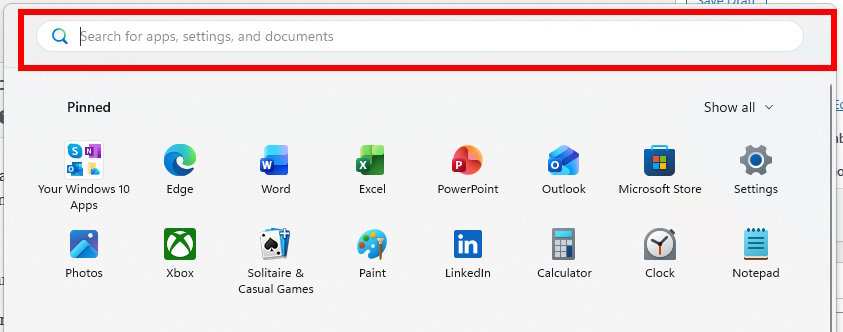
Search sits at the top of the Start menu and is the fastest way to find almost anything on your PC.
What you can search for
- Installed apps
- System settings
- Local files
- Emails (with a connected Microsoft account)
- Web results
How search works
Start typing as soon as the Start menu opens. Results appear instantly and are grouped by category.
Step‑by‑Step Box — Search Tips
Search Tips:
- Type immediately after opening Start — no need to click the bar.
- If search feels slow or incomplete, rebuild the index via Settings → Privacy & security → Searching Windows → Advanced indexing options.
Customising the Start Menu Layout
Windows 11 gives you several ways to personalise the Start menu:
- Move Start to the left: Settings → Personalisation → Taskbar → Taskbar behaviours → Taskbar alignment
- Change Start menu layout: Choose More pins, Default, or More recommendations
- Add folders next to the power button: Settings → Personalisation → Start → Folders (e.g., Documents, Downloads, Network, File Explorer)
These tweaks help make the Start menu feel more familiar if you’re coming from Windows 10.
Troubleshooting Start Menu Issues
If the Start menu becomes unresponsive or search stops working, try:
- Restarting Windows Explorer via Task Manager
- Running the Start menu troubleshooter
- Checking for Windows updates
- Creating a new user profile if corruption is suspected
For more great Windows 11 Tips check out our Index Page.