Windows 11 looks familiar at first glance, but once you start using it, you’ll notice a lot has changed. Some changes are visual, some are functional, and some, on the other hand affect how you work day‑to‑day. This guide walks you through the biggest differences, so you know exactly what to expect when moving from Windows 10.
🎨 A new look and feel
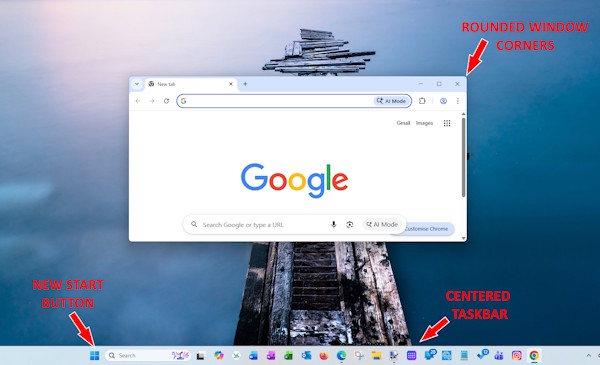
Windows 11 introduces a cleaner, more modern design that feels very different from Windows 10.
- Centred taskbar icons give the desktop a more balanced look.
- Rounded corners appear on windows, menus, and buttons.
- New animations and transparency effects make the interface feel smoother.
- Updated system icons which replace many of the older Windows 10 visuals.
🟦 A redesigned Start menu
The Start menu has been completely rebuilt, for instance:
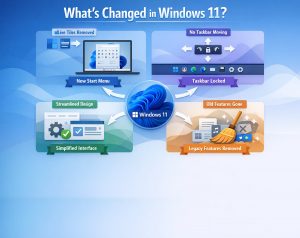
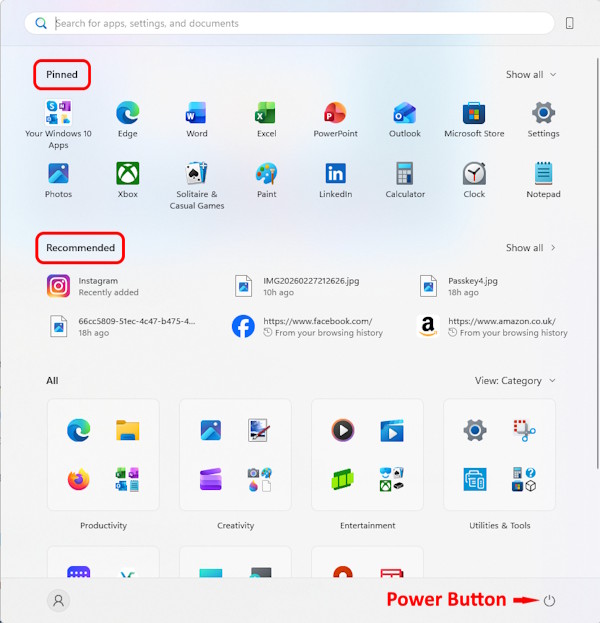
- Windows 11 drops Live Tiles and introduces a straightforward grid of pinned apps.
- A Recommended section shows recent files and apps.
- The search bar now sits at the top of the menu.
- The layout is cleaner but less customisable than Windows 10.
🧩 Widgets replace Live Tiles
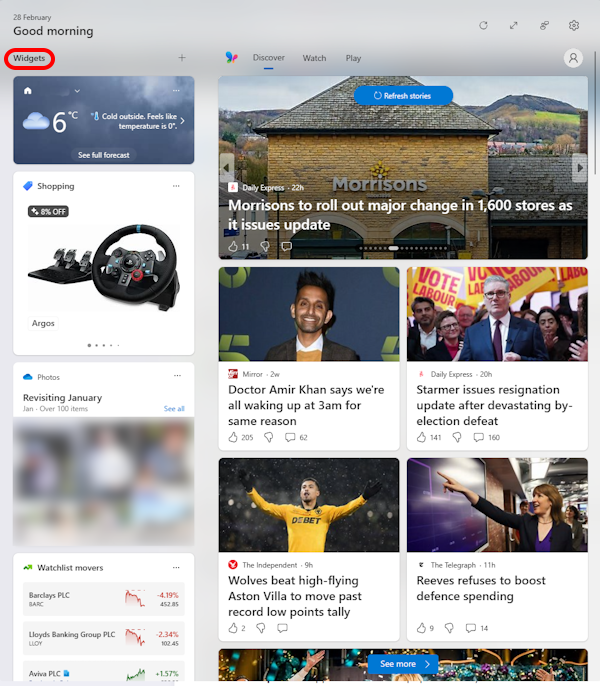
Widgets return as a dedicated panel that slides in from the left.
- This now shows weather, news, calendar, sports, and more.
- Feels similar to the old “News & Interests” panel but more polished.
- Uses a card‑based layout instead of tiles.
🪟 Better multitasking with Snap Layouts
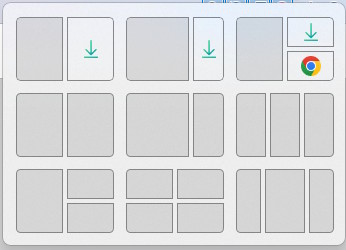
Windows 11 expands on Windows 10’s Snap Assist.
- Snap Layouts appear when you hover over the maximise button.
- Snap Groups let you restore sets of windows with one click.
- Virtual desktops now support different wallpapers and layouts.
These features make organising your workspace much easier.
🛍️ A rebuilt Microsoft Store
The Store is faster, cleaner, and supports more apps.
- Traditional Win32 apps (like Chrome or Zoom) can now appear in the Store.
- Android apps are supported through the Amazon Appstore.
- The interface is simpler and easier to browse.
🎮 Gaming improvements
Windows 11 includes technologies previously found on Xbox consoles.
- Auto HDR improves lighting and colour in supported games.
- DirectStorage reduces load times on supported hardware.
- Better integration with the Xbox app and Game Pass.
These upgrades make Windows 11 a stronger gaming platform than Windows 10.
🔐 Stronger security by default
Windows 11 raises the baseline for hardware and system security.
- Requires TPM 2.0, which improves encryption and secure boot.
- Windows Hello is more tightly integrated for PIN, fingerprint, and face login.
- Smart App Control uses AI to block suspicious apps.
This means better protection, but older PCs may not meet the requirements.
🗂️ Updated File Explorer and system apps
Many built‑in apps have been refreshed.
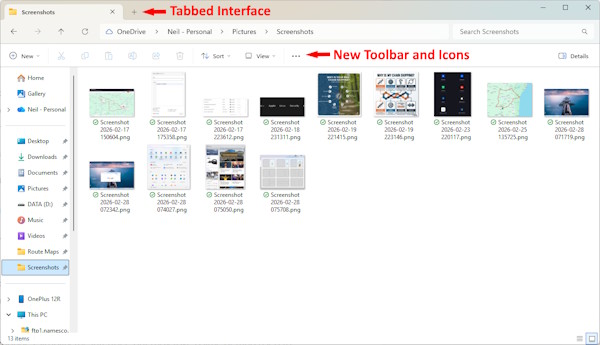
- File Explorer has a new toolbar as well as simplified menus.
- Task Manager includes a new design and an “Efficiency mode”.
- System apps like Photos, Clock, and Notepad have also been modernised.
🧭 Changes to navigation and system behaviour
A few everyday interactions work differently now.
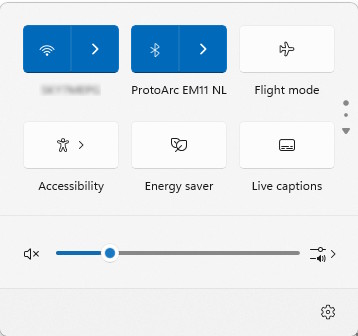
- Quick Settings replaces the old Action Centre for Wi‑Fi, Bluetooth, and volume.
- Notifications live in a separate panel.
- Cortana is no longer pinned to the taskbar.
- Windows 11 removes support for certain taskbar behaviours, including moving it to the top or sides.
These changes may feel unfamiliar at first, but they simplify the user interface.
🤖 AI and Copilot integration
Windows 11 includes built‑in AI features.
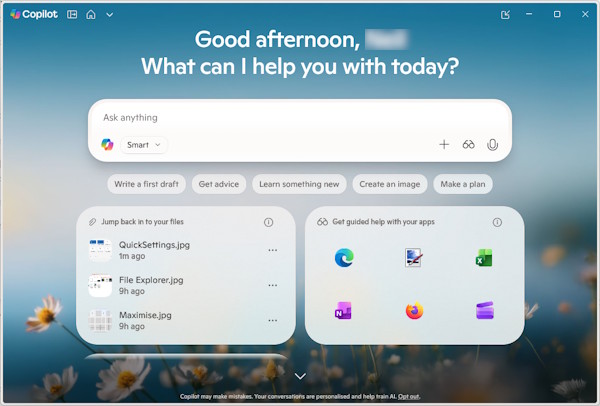
- Microsoft Copilot can help with settings, writing, and productivity tasks.
- AI‑powered tools appear in Photos, security features, and system suggestions.
This, without a doubt, marks a shift toward more automated and assistant‑driven computing.
Bringing it all together
Windows 11 isn’t just a visual refresh, though. It changes how you navigate, how you multitask, how you secure your PC, and lastly, how you interact with apps. For beginners, the new interface is simpler and more consistent, but long‑time Windows 10 users may need a short adjustment period.
For more great Windows 11 Tips check out our Index Page.