Controlling Automatic Numbering
Numbered lists don’t actually have to be started specifically, Word has the ability to start numbering automatically if you just type 1. and hit enter.
Your list will now be created in the usual manner until you cancel it. (To create an automatic bulleted list, start the first line with an asterisk)
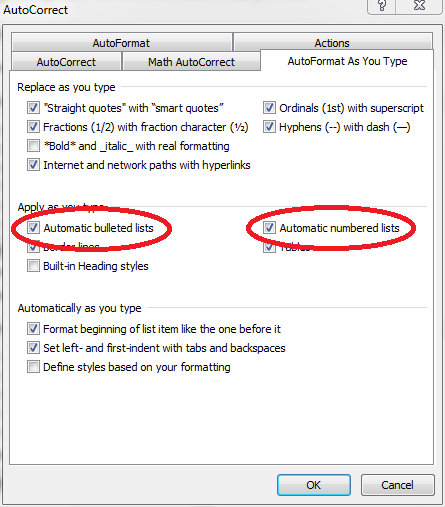
To make sure that Automatic Numbering is active:
- Click File on the Ribbon
- Click Options
- Click Proofing
- Click AutoCorrect Options
- Tick the boxes for Automatic bulleted list and Automatic numbered lists.
- Click OK to apply your changes.
If you find that Automatic numbering is becoming a nuisance then its easy to switch it off by unticking the boxes again.