How to Disable Startup Sounds in Windows 11
Many people don’t realise that it’s possible to disable startup sounds in Windows 11. Windows 11 includes a short chime that plays every time your PC starts. Many people enjoy the friendly tone, yet others prefer a quieter experience. You might work in a shared space, or you may start your computer early in the morning and want to avoid disturbing anyone. Whatever the reason, choosing to disable startup sounds is very simple. Even better, Windows gives you a few different ways to control system audio, so you can tailor everything to your own preferences.
In this guide, you will learn how to disable the startup sound in Windows 11. You will also discover a few related settings that help you keep your device as quiet as possible. As you move through each section, you will see that the steps are quick and easy to follow.
Why Windows 11 Plays a Startup Sound
Before you change anything, it helps to understand why the sound exists. Windows has included startup audio for decades because it signals that the system has loaded successfully. It also gives the operating system a friendly personality. However, as more people use laptops in public places, the sound can become distracting. Therefore, Microsoft added a simple toggle that lets you turn it off whenever you want.
How to Disable Startup Sounds
The fastest way to silence the startup chime is through the Settings app. The option is tucked away inside the Sound settings, yet it only takes a moment to find.
Step 1: Open the Settings App
First, click the Start button and choose Settings. You can also press Windows + I if you prefer using keyboard shortcuts. Once the window opens, you will see a list of categories on the left.
Step 2: Go to the Sound Settings
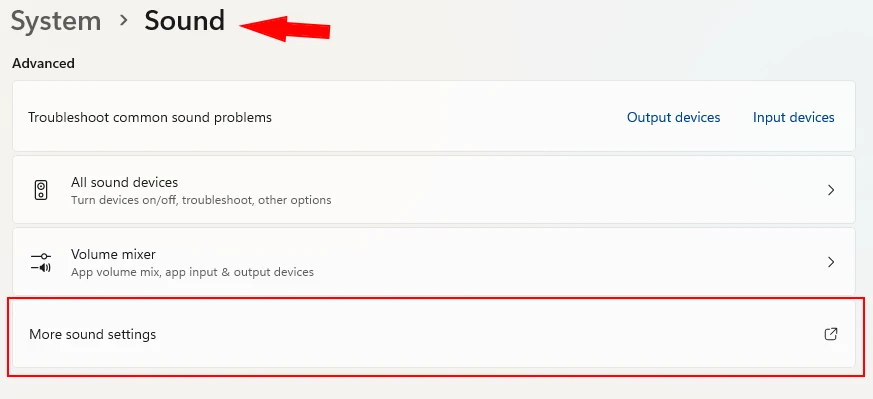
Next, click System, then choose Sound. This section controls everything related to audio, including output devices, input devices, volume levels and system alerts.
Step 3: Open the Sound Control Panel
Scroll down until you see More sound settings. When you click it, Windows will open the classic Sound Control Panel. Although it looks slightly older, it still contains several important options.
Step 4: Disable the Startup Sound
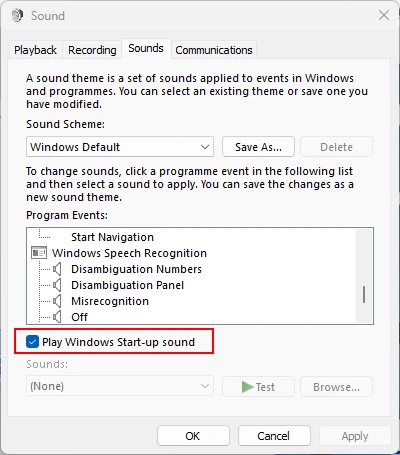
Now switch to the Sounds tab. Near the bottom of the window, you will see a checkbox labelled Play Windows Startup sound. Simply remove the tick. After that, click Apply, then click OK. The next time you restart your PC, it will start silently.
Additional Tips for a Quieter Windows Experience
Once you have disabled the startup sound, you might want to adjust a few other settings. As you explore these options, you will notice that Windows gives you plenty of control.
Turn Off System Notification Sounds
If you want an even quieter environment, you can reduce or disable notification sounds. To do this, return to the Sounds tab in the Sound Control Panel. Then choose a sound from the list and set it to None. This is especially helpful if you receive frequent alerts.
Lower the Volume of System Sounds
Instead of turning sounds off completely, you can simply lower their volume. Go back to Settings, choose System, then select Sound. After that, scroll to Volume mixer. Here you can adjust the volume of system sounds without affecting your apps or media.
Use Focus Assist for Fewer Interruptions
If you want fewer alerts during work or study sessions, try enabling Focus Assist. Open Settings, choose System, then select Focus Assist. This feature reduces notifications and helps you stay focused.
When You Might Want to Re‑Enable the Startup Sound
Although many users prefer silence, there are times when the startup sound can be helpful. For example, if you troubleshoot your PC often, the sound confirms that Windows has loaded correctly. Additionally, if you use your computer in a private space, the chime can be a pleasant part of the startup routine. Fortunately, you can turn it back on at any time by returning to the same checkbox.
Final Thoughts
Disabling the startup sound in Windows 11 is quick, simple and completely reversible. As you have seen, the option is easy to find once you know where to look. Even better, Windows includes several additional tools that help you create a quieter and more comfortable environment. Whether you work in a shared office or simply prefer a silent start to your day, these settings give you full control.
For more great Windows 11 tips check out our Index Page