How to Diagnose a Failing Hard Drive Before It Dies
A failing hard drive is probably most computer users’ ultimate nightmare. The consequences of data loss, lost production time, and cost of replacement are just a few things to consider. However, when a hard drive starts to fail, it rarely happens without warning. Although many people only notice the problem once their files disappear or Windows refuses to boot, there are usually early signs that give you time to act. Because of this, learning how to spot these clues can save your data and prevent a stressful recovery process.
This guide explains the most common symptoms, the tools you can use to confirm the problem, and the steps you should take before the drive fails completely.
Why Hard Drives Fail
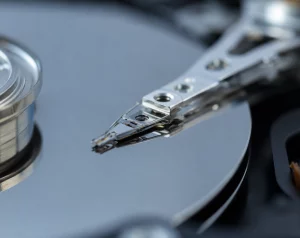
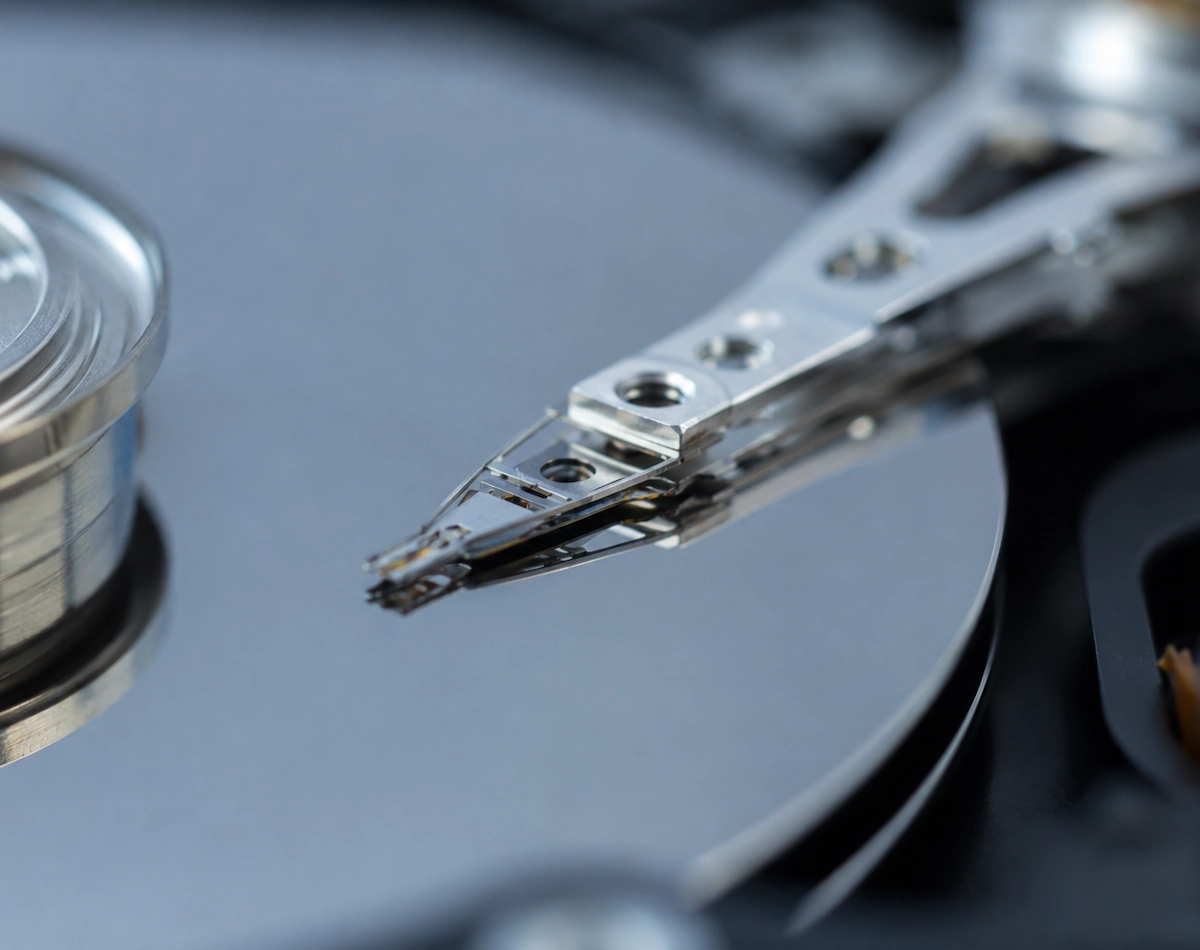
Hard drives are mechanical devices. They contain spinning platters, moving read heads and delicate internal components. As a result, they wear out over time. Furthermore, heat, vibration, power issues and simple age can all accelerate the process. Even solid-state drives can fail, although they tend to show different symptoms.
Understanding the cause is helpful, yet the real priority is recognising the warning signs early.
Early Signs of a Failing Hard Drive You Should Never Ignore
1. Strange Noises
If your hard drive begins to click, grind or whirr loudly, you should take it seriously. These sounds often indicate that the read heads are struggling to move correctly. As the problem gets worse, the drive may stop responding entirely. Because noise is one of the clearest signs of mechanical failure, you should back up your data immediately.
2. Slower Performance
When Windows takes longer to boot or applications freeze more often, the drive may be having trouble reading data. Although slow performance can have many causes, it becomes more suspicious when it appears suddenly. If the slowdown continues even after a restart, you should investigate further.
3. Frequent Crashes
If your computer crashes during file transfers or while opening large programs, the drive may be failing to read sectors reliably. Over time, these crashes usually become more frequent. Eventually, Windows may refuse to load at all.
4. Corrupted Files
If documents refuse to open or images appear damaged, the drive may be developing bad sectors. As more sectors fail, more files become corrupted. Because this type of damage is permanent, you should copy your important data to another drive as soon as possible.
5. Disappearing Drives or Partitions
If your drive sometimes appears in Windows and sometimes does not, the internal electronics may be failing. This behaviour often becomes worse until the drive stops appearing entirely.
How to Check the Health of Your Failing Hard Drive
Once you notice any warning signs, you should confirm the problem using built in tools and free utilities. This helps you understand how serious the issue is and whether the drive is still safe to use.
1. Use Windows SMART Monitoring
Most modern drives support SMART, which stands for Self Monitoring Analysis and Reporting Technology. Windows can read these values and warn you when the drive is close to failure.
To check SMART status:
- Open the Start menu
- Type Command Prompt
- Right click and choose Run as administrator
- Type the following command
wmic diskdrive get status
If the result shows anything other than OK, you should assume the drive is failing.
2. Run CHKDSK
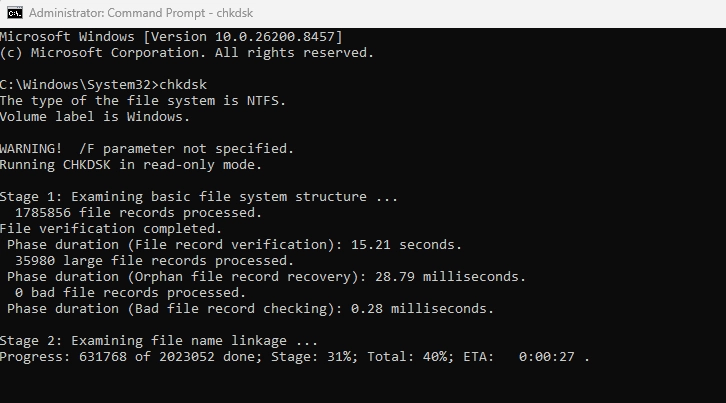
Although CHKDSK cannot repair a dying drive, it can detect bad sectors and file system errors.
To run it:
- Open the Start menu
- Type cmd
- Right click and choose Run as administrator
- Enter
chkdsk C: /f /r
Because this scan can take a long time, you should only run it if the drive is still responding reliably.
3. Use Third Party Tools
If you want more details, you can use tools such as CrystalDiskInfo or Hard Disk Sentinel. These programs show temperature, reallocated sectors, read errors and other SMART attributes. When these numbers begin to rise, the drive is usually close to failure.
One tool we would recommend is Spinrite, available at www.grc.com
What to Do If You Have a Failing Hard Drive
Once you confirm the problem, you should act quickly. The longer you continue using the drive, the higher the risk of losing your data.
1. Back Up Everything Immediately
Start with your most important files. If the drive is unstable, copy data in small batches. If the drive stops responding, let it cool down and try again. Because every minute counts, avoid running unnecessary programs during this process.
2. Stop Using the Failing Hard Drive for Daily Tasks
If you continue using a failing drive, you increase the chance of total failure. Instead, move your files to a new drive and install Windows fresh. This gives you a stable system and prevents further damage.
3. Replace a Failing Hard Drive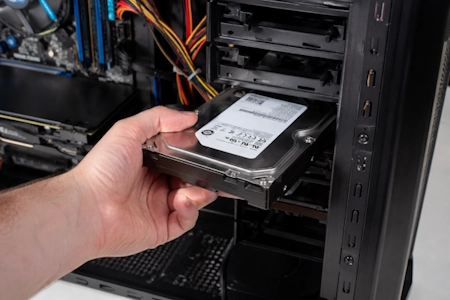
Hard drives are relatively inexpensive. Once a drive begins to fail, replacement is the safest option. Even if the drive seems to recover, the underlying issue usually returns.
4. Consider Professional Recovery
If the drive contains irreplaceable data and no longer responds, a professional recovery service may be able to help. Although this can be expensive, it is often the only option when mechanical components fail.
How to Prevent Future Drive Failures
Although no drive lasts forever, you can reduce the risk by following a few simple habits.
- Keep your computer cool and dust free
- Avoid moving your laptop while the drive is active
- Use a surge protector to prevent power damage
- Back up your data regularly
- Replace older drives before they reach the end of their lifespan
By following these steps, you can protect your files and avoid the stress of unexpected drive failure.
For more hardware tips and advice visit our Index Page