File Systems: NTFS vs. FAT32 vs. exFAT – Explained Simply
When you plug in a USB drive or set up a new hard disk, you’ll often see options like NTFS, FAT32, or exFAT. These are file systems, and they control how your device both stores and organises data. Although they all serve the same basic purpose, each one behaves differently. As a result, choosing the right one can make your storage faster, safer, and more compatible.
What Is a File System?
A file system is the method your device uses to arrange and manage files on a drive. It decides how data is stored, how large files can be, as well as which features are available. Without one, your computer wouldn’t know where anything is.
Because Windows supports several file systems, you’ll most often encounter NTFS, FAT32, and exFAT. Each one has strengths, so understanding them helps you avoid problems later.
NTFS – The Modern Standard for Windows
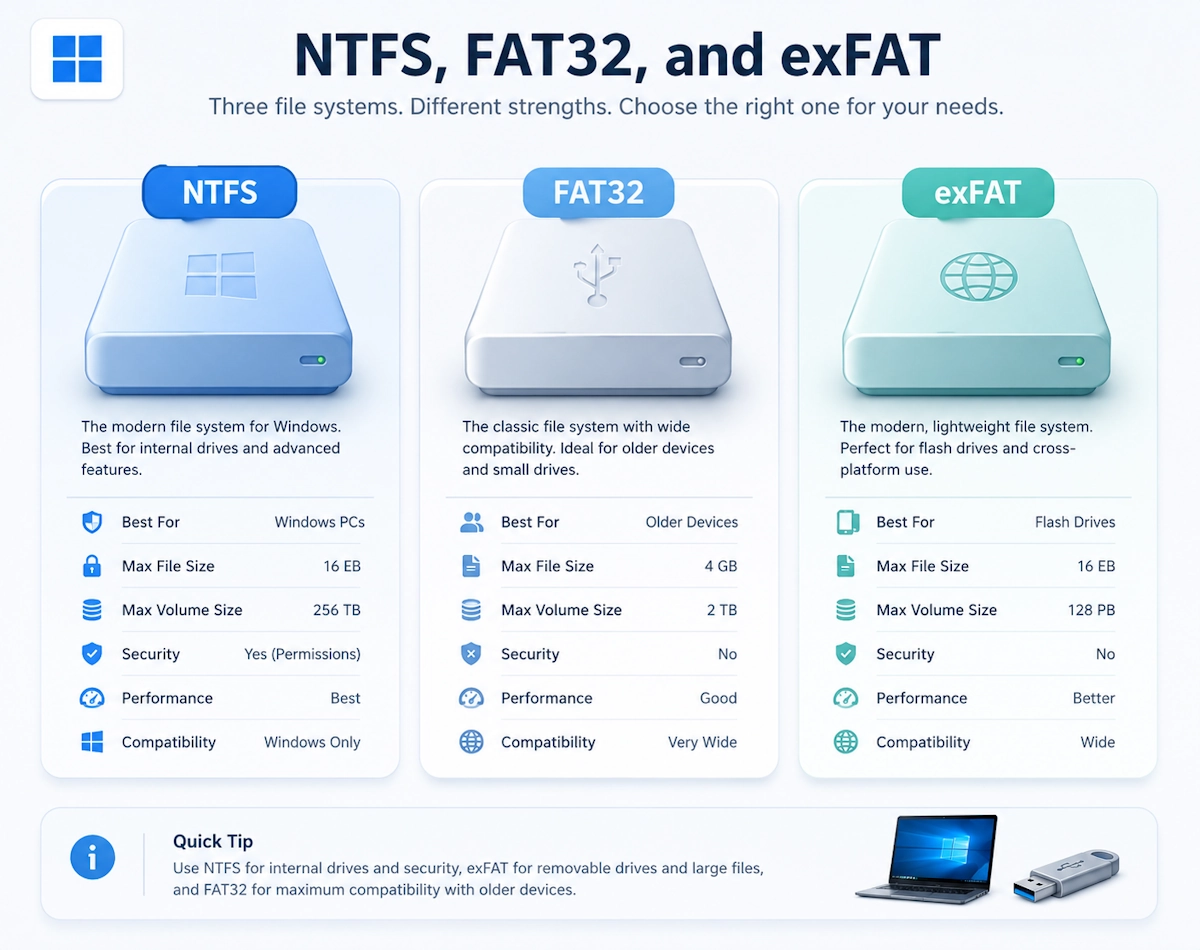
NTFS (New Technology File System) is the default file system for Windows – It’s designed for internal drives, and it includes advanced features that protect your data. As a result, it’s the most reliable option for everyday Windows use.
Key Features
- Supports very large files
- Includes file permissions for security
- Offers encryption, compression, and journaling
- Handles modern storage sizes with ease
Best For
- Internal hard drives and SSDs
- Windows system drives
- Drives that need security or reliability
Limitations
- Limited compatibility with older devices
- macOS can read NTFS but cannot write to it without extra software
- Some smart TVs and game consoles don’t support it
Why Choose NTFS?
If the drive stays inside a Windows PC, NTFS is almost always the right choice. Additionally, it’s the only file system Windows can boot from, so it’s essential for system drives.
FAT32 – The Old but Highly Compatible Option
FAT32 (File Allocation Table 32) is one of the oldest file systems still in use. Because it has been around for decades, it works with almost every device. However, it also comes with strict limitations.
Key Features
- Extremely compatible
- Works with Windows, macOS, Linux, cameras, TVs, as well as some game consoles
Best For
- Small USB sticks
- Devices that require FAT32, such as older media players
Limitations
- Maximum file size: 4GB
- Maximum partition size: 8TB (Windows limits formatting to 32GB)
- No modern features like permissions and encryption
Why Choose FAT32?
Choose FAT32 only when you need maximum compatibility. For example, some older consoles and media devices refuse to read anything else. However, if you plan to store large files, FAT32 will quickly become frustrating.
exFAT – The Best Choice for USB Drives and External Storage
exFAT (Extended File Allocation Table) was created to replace FAT32, as a result it removes the 4GB file limit while keeping compatibility high. Because of this, it’s ideal for portable storage.
Key Features
- Supports very large files
- Lightweight and fast
- Compatible with Windows, macOS, as well as many modern devices
Best For
- USB flash drives
- External SSDs
- SD cards used for cameras or video recording
Limitations
- Not as robust as NTFS
- Some older devices may not support it
Why Choose exFAT?
If you regularly move files between Windows and macOS, exFAT is the simplest option. It handles large files smoothly, and it also avoids the compatibility issues that can be an issue with NTFS.
Quick Comparison Table
| Feature | NTFS | FAT32 | exFAT |
|---|---|---|---|
| Max file size | Practically unlimited | 4GB | Very large |
| Max partition size | Very large | 8TB (Windows formats up to 32GB) | Very large |
| Windows support | Full | Full | Full |
| macOS support | Read only | Full | Full |
| Linux support | Full read/write (native) | Full | Full (requires modern distro) |
| Best use case | Internal drives | Older devices | USB drives and external storage |
| Security features | Yes | No | No |
Which File System Should You Use?
Choosing the right file system, therefore, depends on how you plan to use the drive. However, the decision becomes simple once you know the strengths of each option.
NTFS is best if…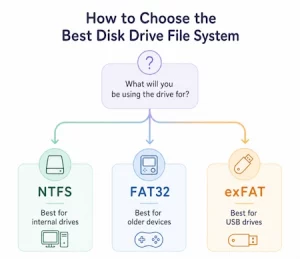
- The drive stays in a Windows PC
- You need security and / or reliability
- You’re installing Windows on it
FAT32 is best if…
- You need compatibility with older devices
- You’re using small USB sticks
- You don’t need to store large files
exFAT is best if…
- You’re sharing files between Windows and macOS
- You’re storing large files such as videos
- You’re using modern USB drives or SD cards
Final Thoughts
Understanding file systems helps you avoid errors, improve compatibility, and thus get the best performance from your storage devices. NTFS is ideal for Windows systems, whilst FAT32 is useful for older hardware, and finally, exFAT is perfect for portable drives. Once you know the differences, choosing the right one thus becomes much easier.