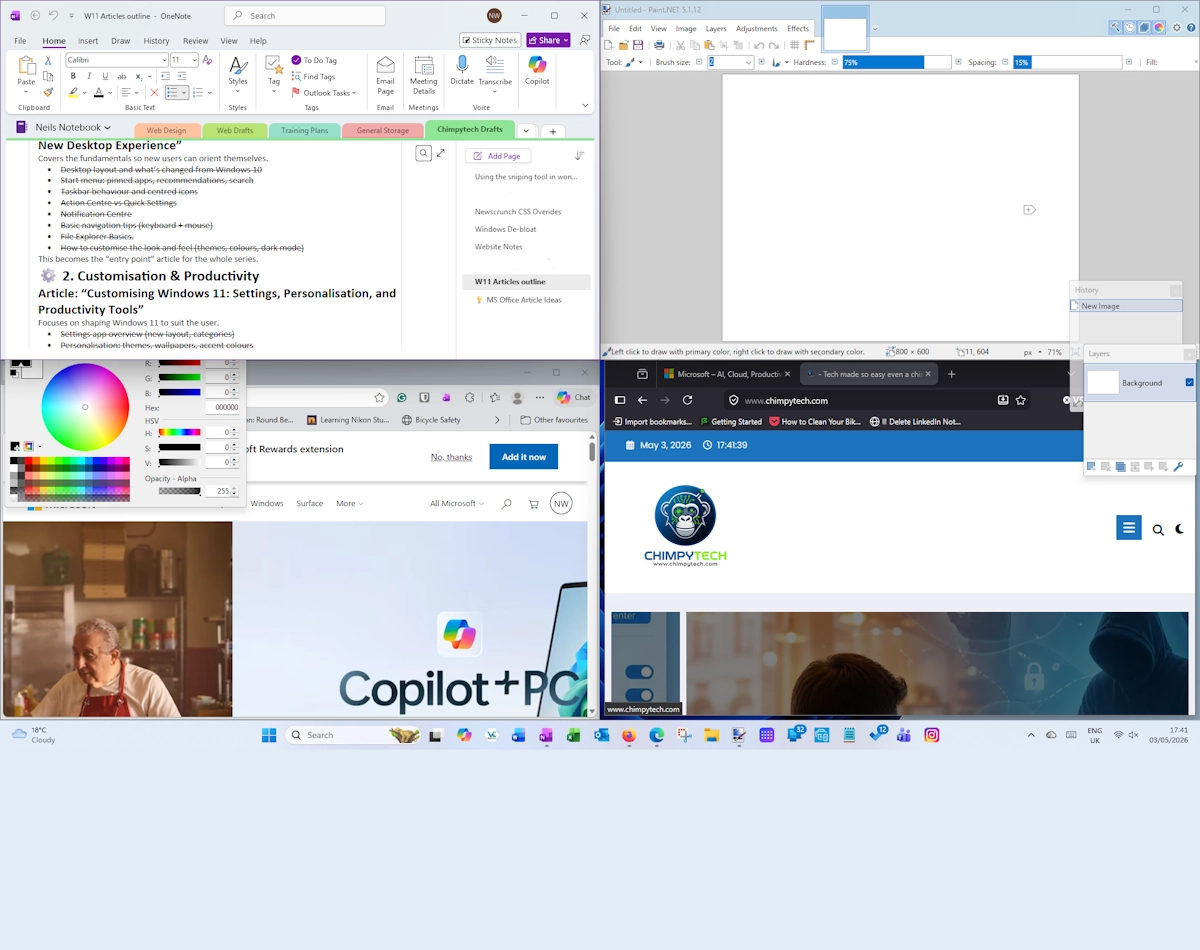
Windows 11 Snap Layouts and Snap Groups: A Complete Guide
Windows 11 introduces several features that make multitasking feel smoother and more organised. Among these improvements, Snap Layouts and Snap Groups stand out because they help you arrange windows quickly and return to your workflow without losing focus. As you explore these tools, you will notice that they make everyday tasks easier, especially when you switch between apps throughout the day.
What Are Snap Layouts
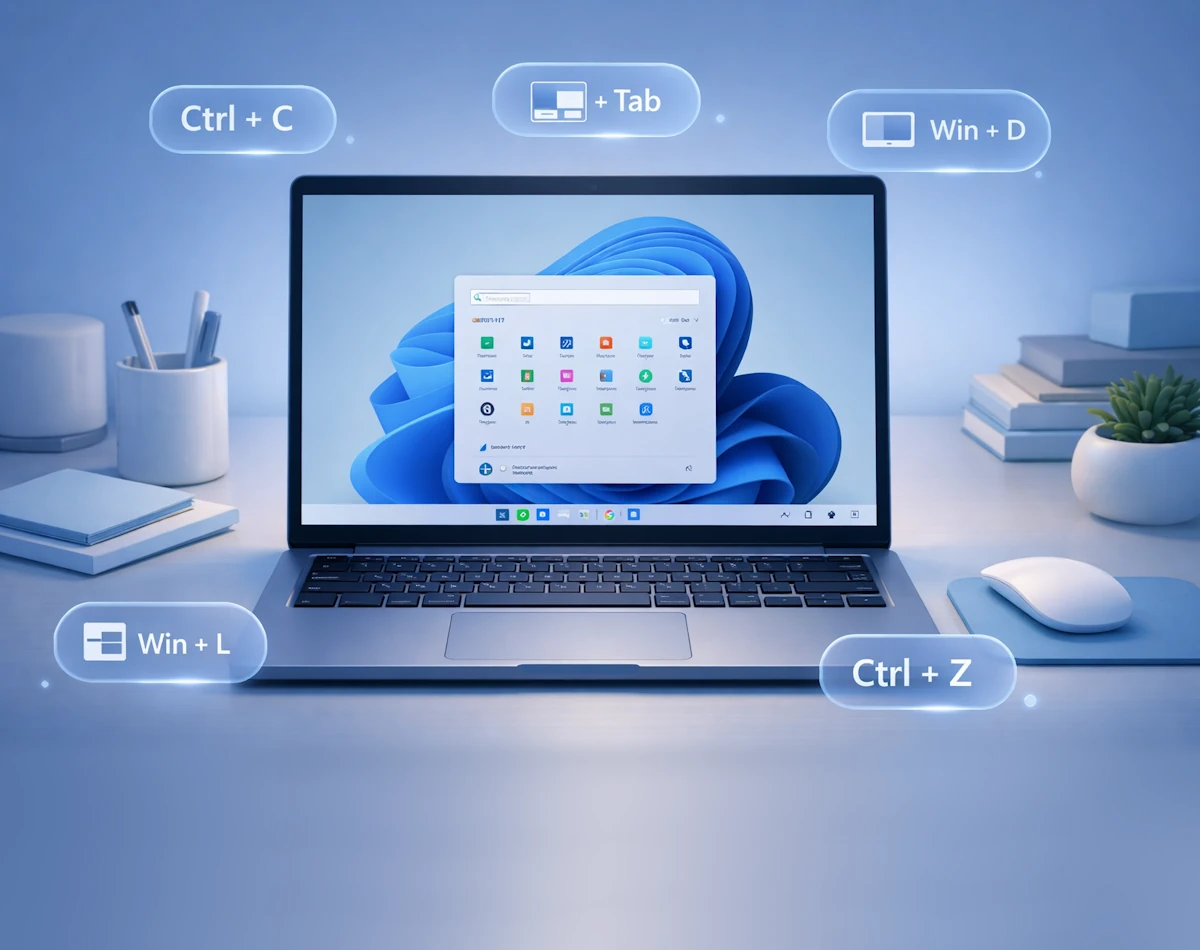
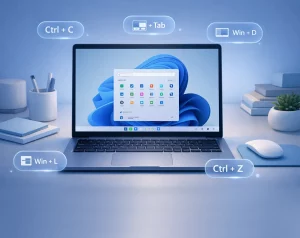
Snap Layouts are predefined window arrangements that appear when you hover your mouse over a window’s maximise button. Instead of dragging windows around the screen, you can choose a layout that instantly positions your apps in a tidy grid. This means you can work more efficiently because your screen space is used in a structured way.
When you hover over the maximise button, you will see several layout options. These include simple side-by-side splits, three-column arrangements and even four-way grids. As soon as you select a zone, Windows places the window there and then guides you to fill the remaining spaces with other apps. This step-by-step approach makes the process feel natural.
How to Use Snap Layouts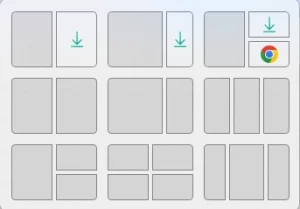
Although Snap Layouts appear automatically, it helps to understand the basic steps.
- Open any app window.
- Move your mouse over the maximise button.
- Choose one of the layout patterns.
- Select the apps you want to place in the remaining zones.
As soon as you complete the layout, Windows locks the arrangement in place. This means you can focus on your work without worrying about windows overlapping or drifting out of position.
What Are Snap Groups
Once you start using Snap Layouts, you will quickly notice another helpful feature. Snap Groups are collections of windows that you have snapped together. Windows 11 remembers these groups, which means you can minimise them, switch to another task and then return to the entire group with a single click.
For example, imagine you are researching a topic. You might have a browser window, a notes app and a file explorer window snapped together. If you switch to another project, you can return to the whole set by hovering over the app icon on the taskbar. Windows will show the group preview so you can restore everything instantly.
Why Snap Groups Are Useful
Snap Groups are especially helpful when you juggle multiple workflows. Instead of reopening apps one by one, you can restore your entire workspace in one action. This saves time and reduces the mental load of remembering which windows you were using.
Additionally, Snap Groups work across virtual desktops. This means you can create separate workspaces for different tasks and still keep your snapped layouts intact. As a result, your screen stays organised even when you switch between projects.
Customising Snap Settings
Although Snap Layouts work well out of the box, Windows 11 includes several settings that allow you to fine tune the experience. To access them, open Settings and then choose System followed by Multitasking. Here you can enable or disable features such as automatic resizing, layout suggestions and window snapping behaviour.
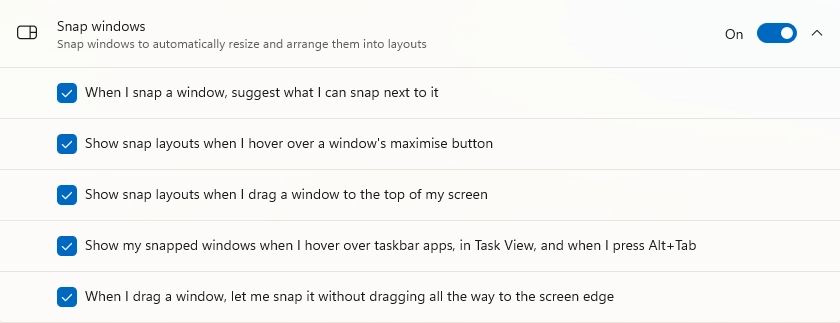
As you adjust these options, you can tailor the snapping experience to match your workflow. For instance, you might prefer to snap windows manually or you might want Windows to suggest layouts whenever you drag a window to the top of the screen, as shown in the image below.

Practical Examples
To help you get started, here are a few common scenarios.
- Research and writing Snap your browser on the left and your writing app on the right. This keeps your reference material visible while you type.
- Data comparison Use a three column layout to compare spreadsheets, documents or web pages side by side.
- Creative work Arrange your editing software, file explorer and preview window in a grid so you can switch between tools quickly.
Each of these setups becomes even more powerful when you save them as Snap Groups by simply using them. Windows remembers the arrangement automatically.
Final Thoughts
Snap Layouts and Snap Groups bring structure and clarity to your Windows 11 workspace. As you begin using them, you will find that switching between tasks becomes smoother and more predictable. Because these tools are built directly into the operating system, you can rely on them every day without installing anything extra.
For more great Windows 11 tips, check out our Index Page