Windows 11 Network & Wi‑Fi Quick Fixes
Windows 11 network problems are thankfully quite rare. However, when your internet connection suddenly drops or slows down, it can be frustrating. The good news is that Windows 11 includes several built‑in tools and quick fixes to help you get back online fast. This guide walks you through simple steps to solve common Wi‑Fi and network issues without needing advanced technical knowledge.
1. Check the Basics First
Before diving into settings, start with the simplest checks.
- Make sure your Wi‑Fi is turned on.
- Verify that Airplane Mode is off.
- Check that your router is powered and broadcasting.
- Try connecting another device to see if the problem is with your PC or the network.
If other devices connect fine, the issue is likely within Windows 11.
2. Run the Network Troubleshooter
Windows 11 includes a built‑in troubleshooter that can automatically detect and fix many problems.
Steps:
- Open Settings → System → Troubleshoot → Other troubleshooters.
- Find Network Adapter and click Run.
- Follow the on‑screen instructions.
This tool checks your network adapter, resets configurations, and often resolves connection drops or missing Wi‑Fi networks.
3. Restart Your Network Adapter
Sometimes the adapter itself needs a quick refresh.
Steps:
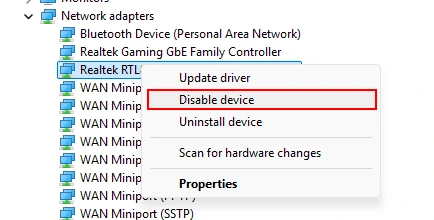
- Press Windows + X and select Device Manager.
- Expand Network adapters.
- Right‑click your Wi‑Fi adapter and choose Disable device.
- Wait a few seconds, then right‑click again and select Enable device.
This simple restart clears temporary glitches and reinitialises the hardware.
4. Forget and Reconnect to Your Wi‑Fi Network
If your PC keeps failing to connect, forgetting the network can help.
Steps:
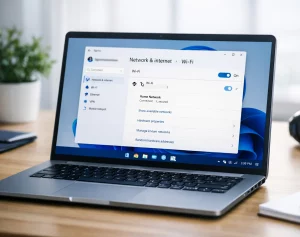
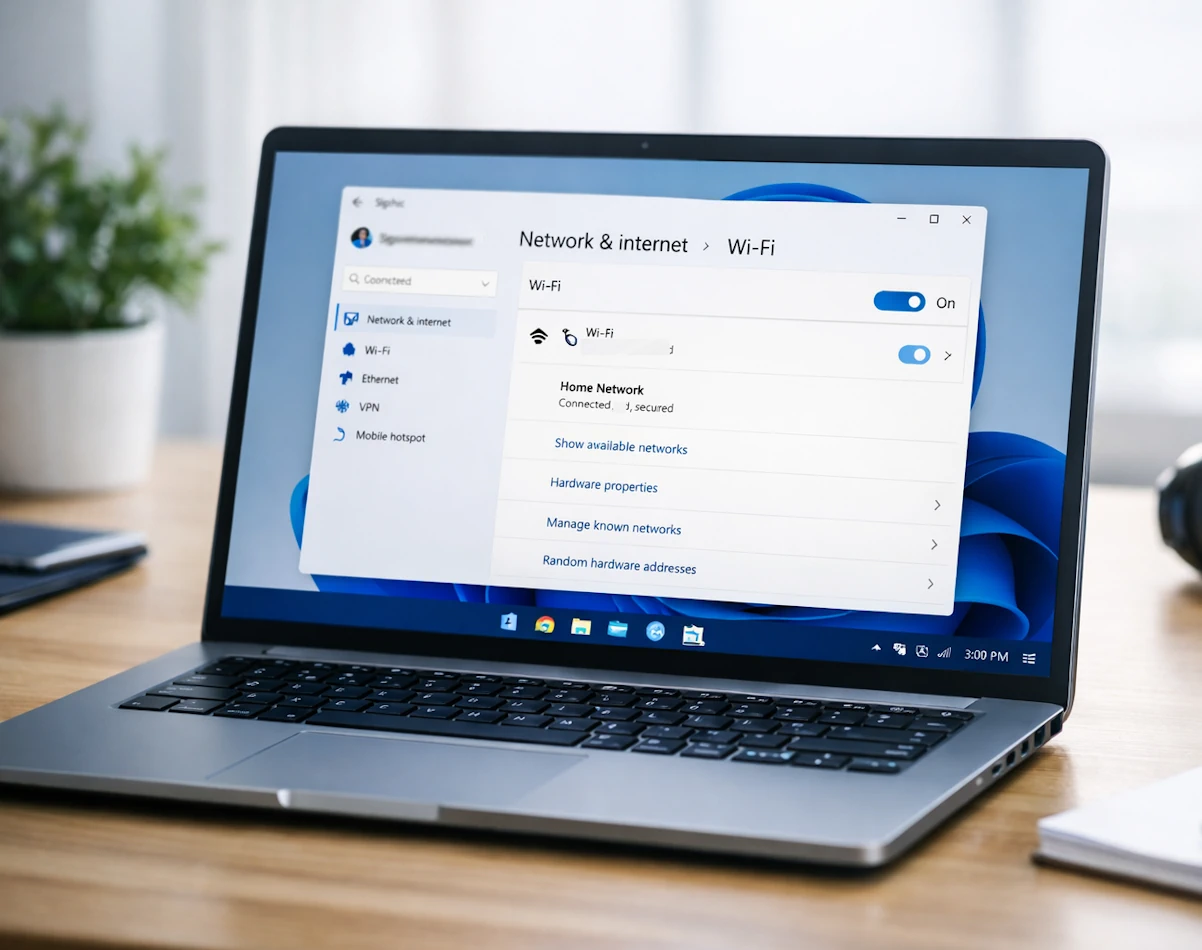
- Open Settings → Network & Internet → Wi‑Fi → Manage known networks.
- Select your network and click Forget.
- Reconnect by selecting the network again and entering your password.
This removes old connection data that may be causing conflicts.
5. Reset Network Settings
When all else fails, a full network reset can restore default configurations.
Steps:
- Open Settings → Network & Internet → Advanced network settings.
- Scroll down and click Network reset.
- Confirm and restart your PC.
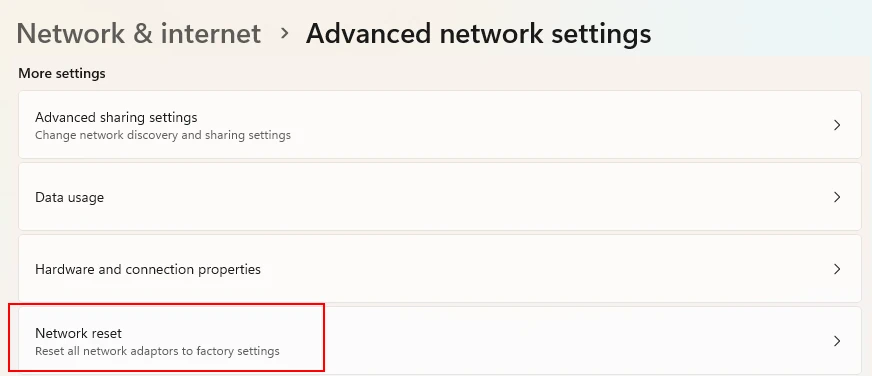
After rebooting, Windows reinstalls all network adapters and resets settings to factory defaults. You’ll need to reconnect to Wi‑Fi manually afterwards.
6. Update Your Network Drivers
Outdated drivers can cause connectivity issues, especially after major Windows updates.
Steps:
- Press Windows + X → Device Manager.
- Expand Network adapters.
- Right‑click your Wi‑Fi adapter → Update driver → Search automatically for drivers.
If Windows doesn’t find one, visit your PC manufacturer’s website for the latest version.
7. Check DNS and IP Settings
Incorrect DNS or IP configurations can block access to websites.
Steps:
- Open Settings → Network & Internet → Wi‑Fi → Hardware properties.
- Scroll to IP assignment and click Edit.
- Choose Automatic (DHCP) if it’s set to manual.
- Save and reconnect.
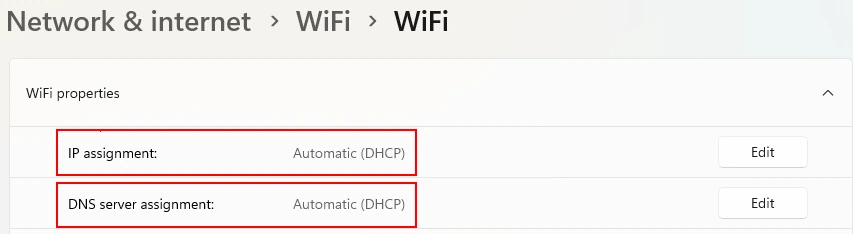
This ensures your PC automatically receives the correct network details from your router.
8. Use Command Prompt for Advanced Fixes
If you’re comfortable with basic commands, these can help clear deeper issues.
Open Command Prompt (Admin) and run:
ipconfig /release
ipconfig /renew
netsh winsock reset
netsh int ip reset
Restart your PC afterwards. These commands refresh your IP address and reset network stacks.
9. Check for Windows Updates
Microsoft often releases patches that improve network stability.
Steps:
- Open Settings → Windows Update.
- Click Check for updates.
- Install any available updates and restart your PC.
Keeping Windows current ensures compatibility with routers and drivers.
10. When to Contact Your ISP
If none of these steps works, the issue may be external. Contact your Internet Service Provider to check for outages or line faults. They can also verify if your router firmware needs updating.
Key Takeaways
- Start with simple checks before using advanced tools.
- Windows 11’s built‑in troubleshooters fix most network issues automatically.
- A network reset or driver update often solves persistent problems.
- Keep your system and router firmware up to date for the best performance.
- Windows 11 network problems are rarely catastrophic and easily solved.
For more great Windows 11 tips, tricks, and fixes, visit our Index Page