Why Your PC Slows Down Over Time (and What Actually Helps)
As almost any user will have experienced, a brand‑new PC slows down after initially feeling fast when brand new. Apps open instantly, the desktop loads quickly, and everything responds the moment you click. However, as months pass, that smooth performance often fades. Programs take longer to launch, the system hesitates, and even simple tasks begin to feel sluggish. Although this slowdown is frustrating, it is also completely normal. More importantly, it is usually fixable.
This guide explains why a PC slows down as it ages and what actually helps to restore performance.
1. Software Piles Up and Runs in the Background
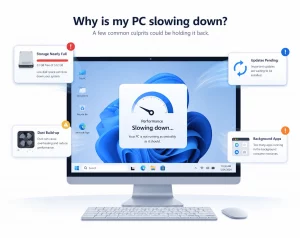
When you install new apps, many of them add background processes that run every time you start your PC. Over time, these small additions stack up. Each one uses a little memory and a little CPU time. Eventually, the system becomes overloaded with the result that the PC slows down.
What helps
- Remove software you no longer use
- Disable unnecessary startup apps in Task Manager
- Turn off background permissions for apps that do not need them
These changes often deliver an instant improvement.
2. Your Storage Drive Fills Up
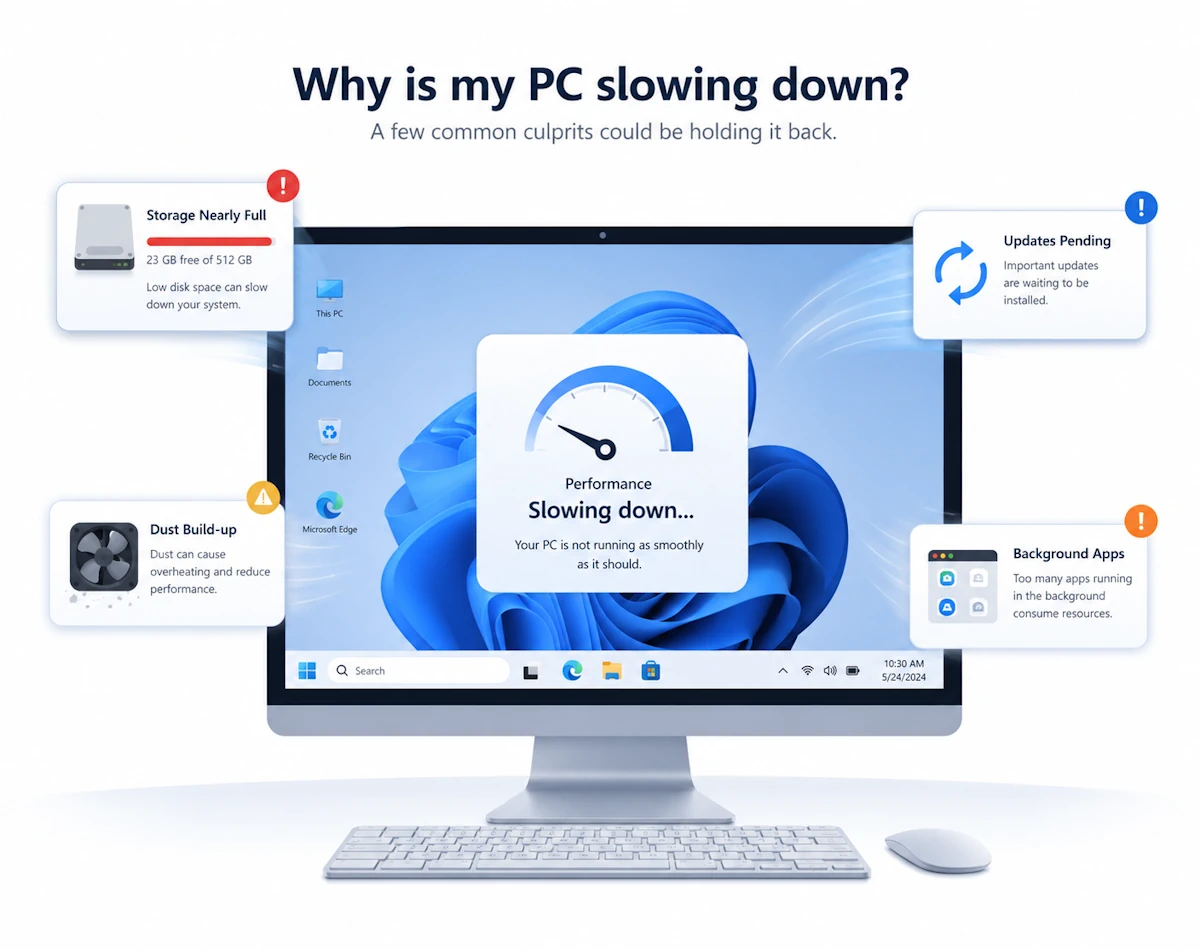
As your drive fills, Windows has less room to work. Modern versions of Windows rely on free space for updates, caching, and temporary files. When the drive becomes crowded, everything slows down.
What helps
- Keep at least 15 to 20 percent of your drive free
- Delete temporary files using Storage Sense
- Move large videos, photos, and installers to external storage or cloud storage
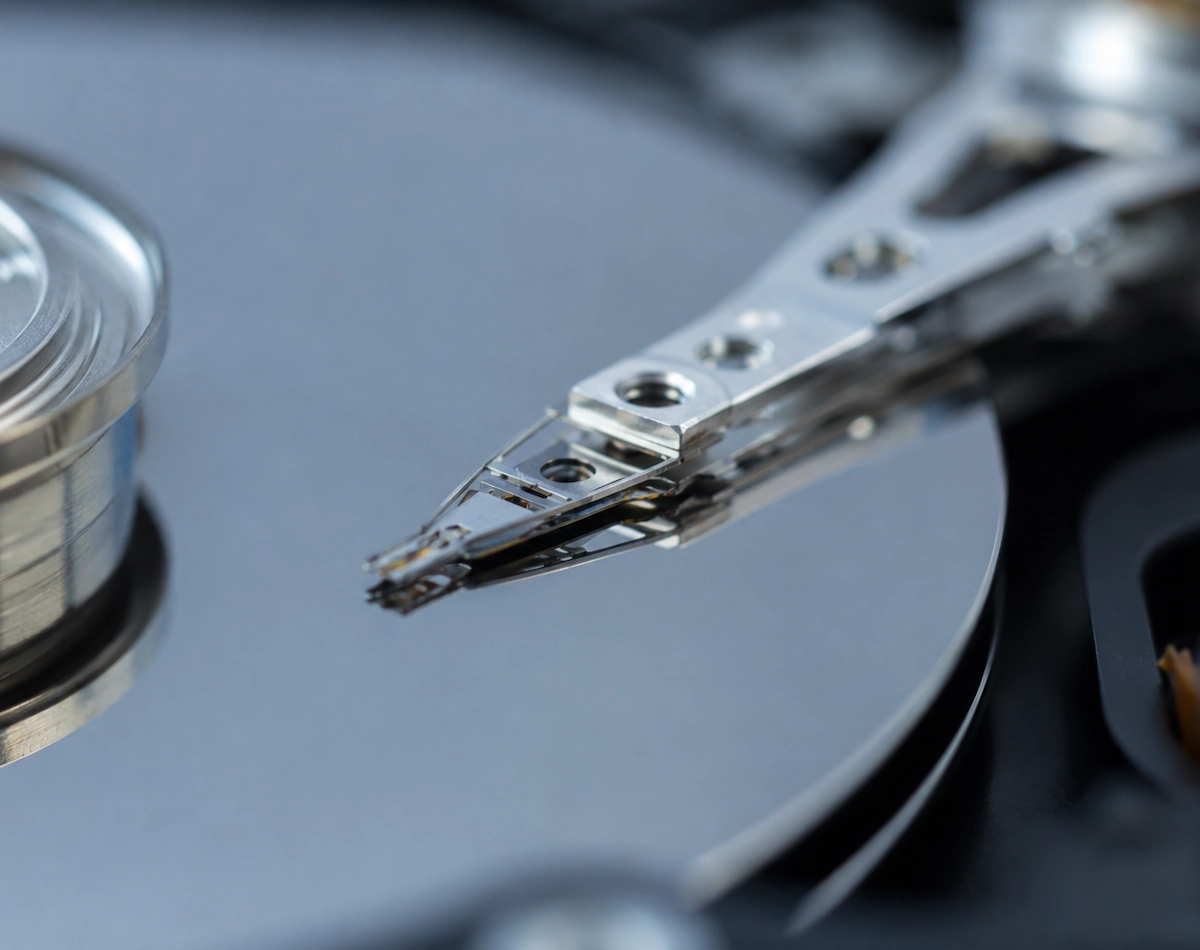
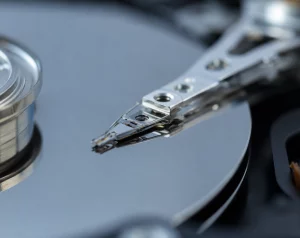
If you are using an older PC with a mechanical hard drive, upgrading to an SSD is one of the biggest speed boosts you can make.
3. Updates and Drivers Become Outdated
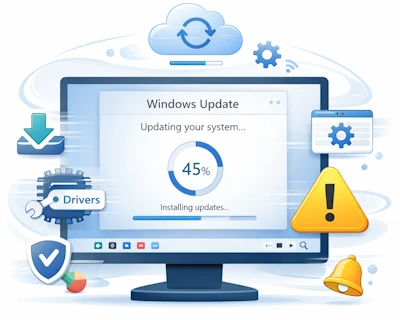
Although updates can feel annoying, they are essential for performance. Outdated drivers or missing Windows updates can cause slowdowns, crashes, and long boot times.
What helps
- Install Windows Updates regularly
- Update graphics, chipset, and storage drivers
- Restart your PC after major updates so everything completes properly
Keeping your system current prevents many performance issues.
4. Your Browser Becomes a Resource Hog
Web browsers are often the biggest cause of slowdowns. Each tab uses memory. Extensions use even more. Over time, the browser becomes bloated and sluggish.
What helps
- Close unused tabs
- Remove extensions you do not need
- Clear cached data occasionally
- Consider switching to a lighter browser if yours feels heavy
A tidy browser can make your whole PC feel faster.
5. Startup and Shutdown Times Increase
As more apps add themselves to startup, Windows takes longer to load. The same happens during shutdown because the system must close everything cleanly.
What helps
- Review your startup list every few months
- Disable anything that is not essential
- Restart your PC at least once a week to clear memory and background tasks
A quick restart often solves temporary slowdowns.
6. Hardware Ages and Becomes a Bottleneck
Even with good maintenance, hardware eventually reaches its limits. Modern apps expect more memory, faster storage, and stronger processors than older systems can provide.
What helps
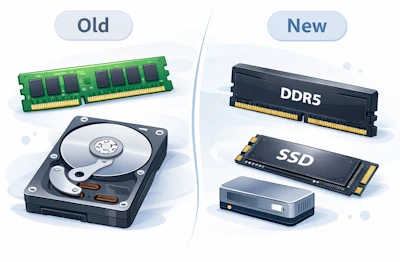
- Upgrade from HDD to SSD
- Increase RAM if your system is running out
- Replace ageing laptops or desktops when upgrades are no longer cost‑effective
These upgrades can extend the life of your PC significantly.
7. Dust and Heat Build Up Inside the System
As dust collects inside your PC, airflow becomes restricted. This causes the system to run hotter. When temperatures rise, the processor slows itself down to stay safe. This is called thermal throttling.
What helps
- Clean dust from vents and fans every few months
- Ensure your PC has good airflow
- Replace old thermal paste on desktop CPUs if temperatures are unusually high
Lower temperatures always improve performance.
8. Windows Collects Temporary Files and System Clutter
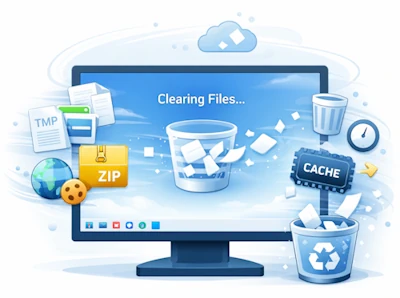
Windows creates logs, caches, and temporary files constantly. Over time, these build up and is a common reason many PCs slow down.
What helps
- Use Disk Cleanup or Storage Sense
- Clear temporary files
- Remove old Windows installation files after major updates
A little housekeeping goes a long way.
What Actually Makes a Difference
Many “PC booster” tools promise miracles, although most do very little. Instead, the changes that truly help are simple and reliable.
The fixes that work
- Free up storage space
- Disable unnecessary startup apps
- Keep Windows and drivers updated
- Clean dust from your system
- Upgrade to an SSD
- Add more RAM if you regularly hit the limit
These steps deliver real, measurable improvements.
Final Thoughts
It’s inevitable that PCs slow down with usage and time. However, a slowing PC does not mean it is broken. It simply means it needs a little maintenance. With the right steps, you can restore much of the speed you enjoyed when the system was new. Even better, you can keep it running smoothly for years to come.
For more great Windows 11 tips, visit our Index Page