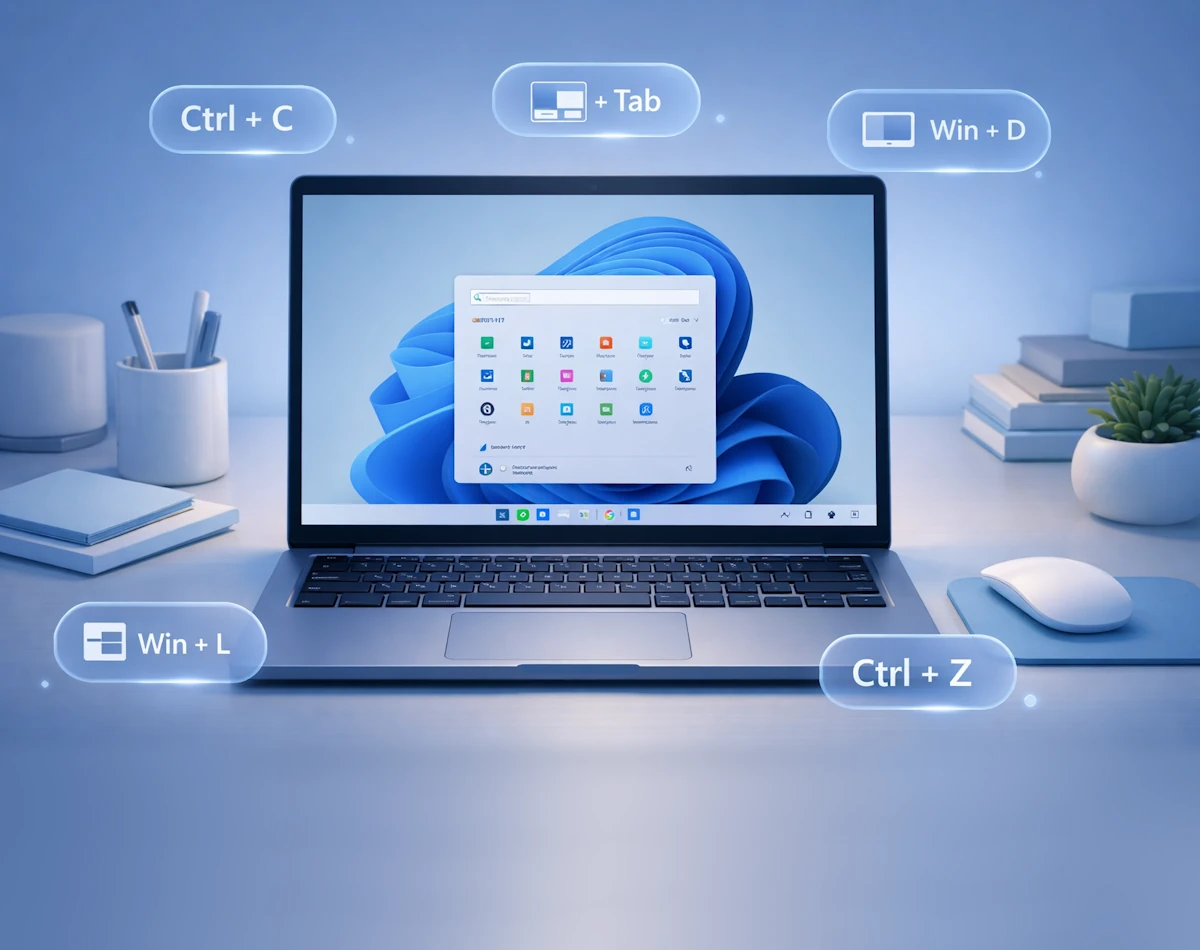
The Ultimate Windows 11 Keyboard Shortcuts Cheat Sheet
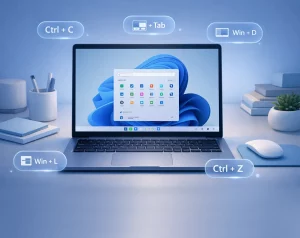
In Windows 11 keyboard shortcuts are one of the quickest ways to speed up your workflow. They help you move between apps, manage windows, open tools and complete tasks without lifting your hands from the keyboard. As you get comfortable with them, you will notice that everyday actions become faster and more fluid. This cheat sheet brings together the most useful shortcuts for beginners and experienced users alike.
Essential Windows Keys
These shortcuts form the foundation of Windows 11 navigation. They help you open menus, search your PC and access core features instantly.
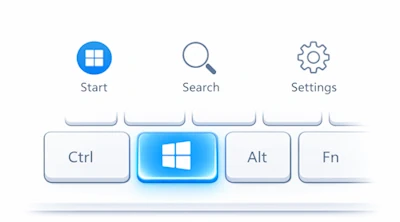
- Windows Key — Opens the Start menu
- Windows + A — Opens Quick Settings
- Windows + N — Opens Notifications
- Windows + S — Opens Search
- Windows + X — Opens the Power User Menu
- Windows + I — Opens Settings
- Windows + L — Locks your PC
- Windows + D — Shows or hides the desktop
File Explorer Shortcuts
Once you start using these shortcuts, browsing folders and managing files becomes much smoother.
- Windows + E — Opens File Explorer
- Ctrl + N — Opens a new File Explorer window
- Ctrl + Shift + N — Creates a new folder
- Alt + Left Arrow — Goes back
- Alt + Right Arrow — Goes forward
- Alt + Up Arrow — Moves up one folder level
- F2 — Renames the selected file or folder
- Ctrl + Shift + 2 — Switches to the “Large Icons” view
- Ctrl + Shift + 6 — Switches to the “Details” view
Window and Multitasking Shortcuts
Windows 11 includes powerful multitasking tools. These shortcuts help you snap windows, switch tasks and stay organised.
- Windows + Tab — Opens Task View
- Windows + Ctrl + D — Creates a new virtual desktop
- Windows + Ctrl + Left/Right Arrow — Switches between virtual desktops
- Windows + Z — Opens Snap Layouts
- Windows + Left/Right Arrow — Snaps the active window to one side
- Windows + Up Arrow — Maximises the window
- Windows + Down Arrow — Minimises the window
Screenshot and Capture Shortcuts
Windows 11 gives you several ways to capture your screen. These shortcuts help you grab exactly what you need.
- Print Screen — Copies the entire screen to the clipboard
- Windows + Print Screen — Saves a full screenshot to your Pictures folder
- Alt + Print Screen — Captures the active window
- Windows + Shift + S — Opens Snipping Tool capture options
Taskbar and App Shortcuts
These shortcuts help you launch apps quickly and manage your taskbar more efficiently.
- Windows + Number Key (1–9) — Opens the app pinned in that position on the taskbar
- Shift + Click on a taskbar icon — Opens a new instance of the app
- Ctrl + Shift + Click on a taskbar icon — Opens the app as an administrator
Text Editing and Selection Shortcuts
Whether you are writing, editing or organising text, these shortcuts save time and reduce repetitive actions.
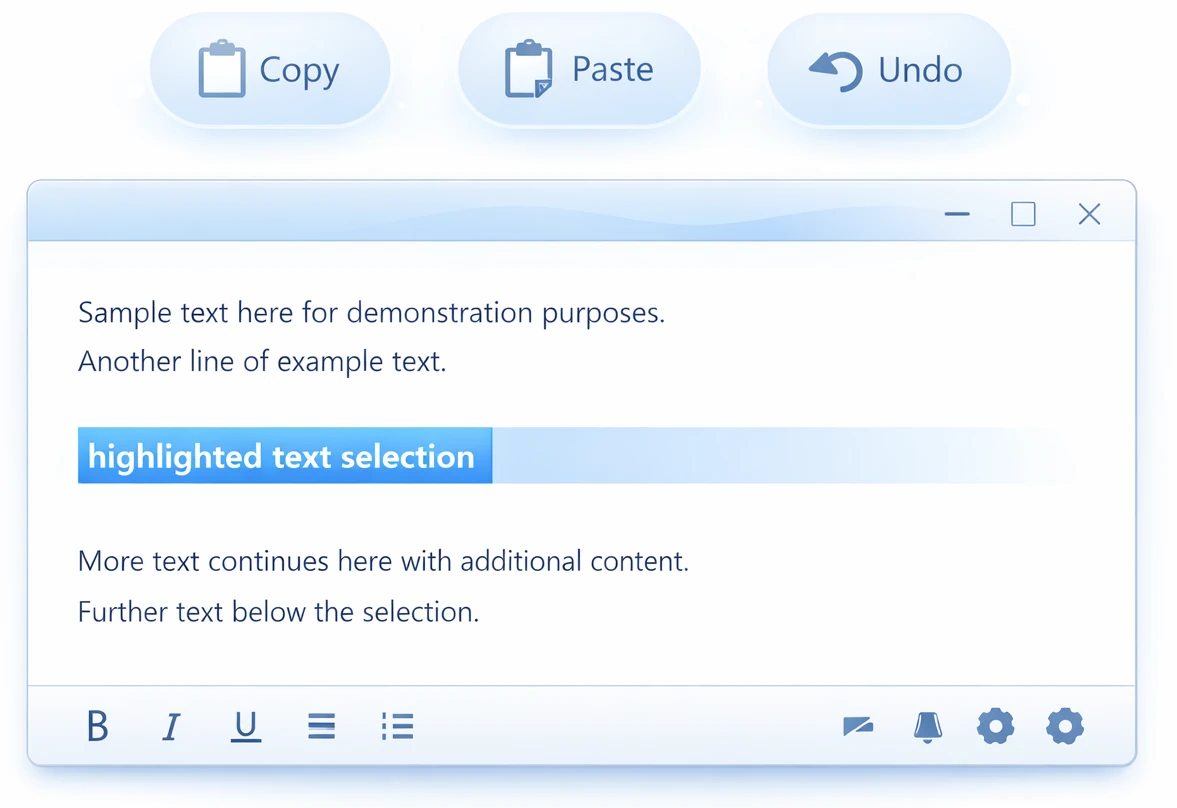
- Ctrl + C — Copy
- Ctrl + X — Cut
- Ctrl + V — Paste
- Ctrl + A — Select all
- Ctrl + Z — Undo
- Ctrl + Y — Redo
- Ctrl + Shift + Left/Right Arrow — Selects one word at a time
- Ctrl + Backspace — Deletes the previous word
Browser Shortcuts (Edge, Chrome and Firefox)
These shortcuts work across all major browsers and help you navigate the web more efficiently.
- Ctrl + T — Opens a new tab
- Ctrl + Shift + T — Reopens the last closed tab
- Ctrl + W — Closes the current tab
- Ctrl + L — Highlights the address bar
- Ctrl + Tab — Moves to the next tab
- Ctrl + Shift + Tab — Moves to the previous tab
- Ctrl + R — Reloads the page
Accessibility Shortcuts
Windows 11 includes helpful tools for users who need additional support. These shortcuts make them easier to access.
- Windows + Plus (+) — Opens Magnifier
- Windows + Ctrl + Enter — Turns Narrator on or off
- Windows + U — Opens Accessibility settings
Power and System Shortcuts
These shortcuts help you manage your system quickly, especially when you need to troubleshoot or restart.
- Ctrl + Alt + Delete — Opens security options
- Alt + F4 — Closes the active window or opens shutdown options when used on the desktop
- Windows + R — Opens the Run dialog
- Windows + Pause/Break — Opens System Information
Final Thoughts
As you begin using these shortcuts regularly, you will notice a clear improvement in your speed and efficiency. Windows 11 is designed to feel smooth and intuitive, and keyboard shortcuts help you unlock its full potential. You can start with a few essentials, then gradually add more as they become second nature.
For more great Windows 11 tips visit our Index Page