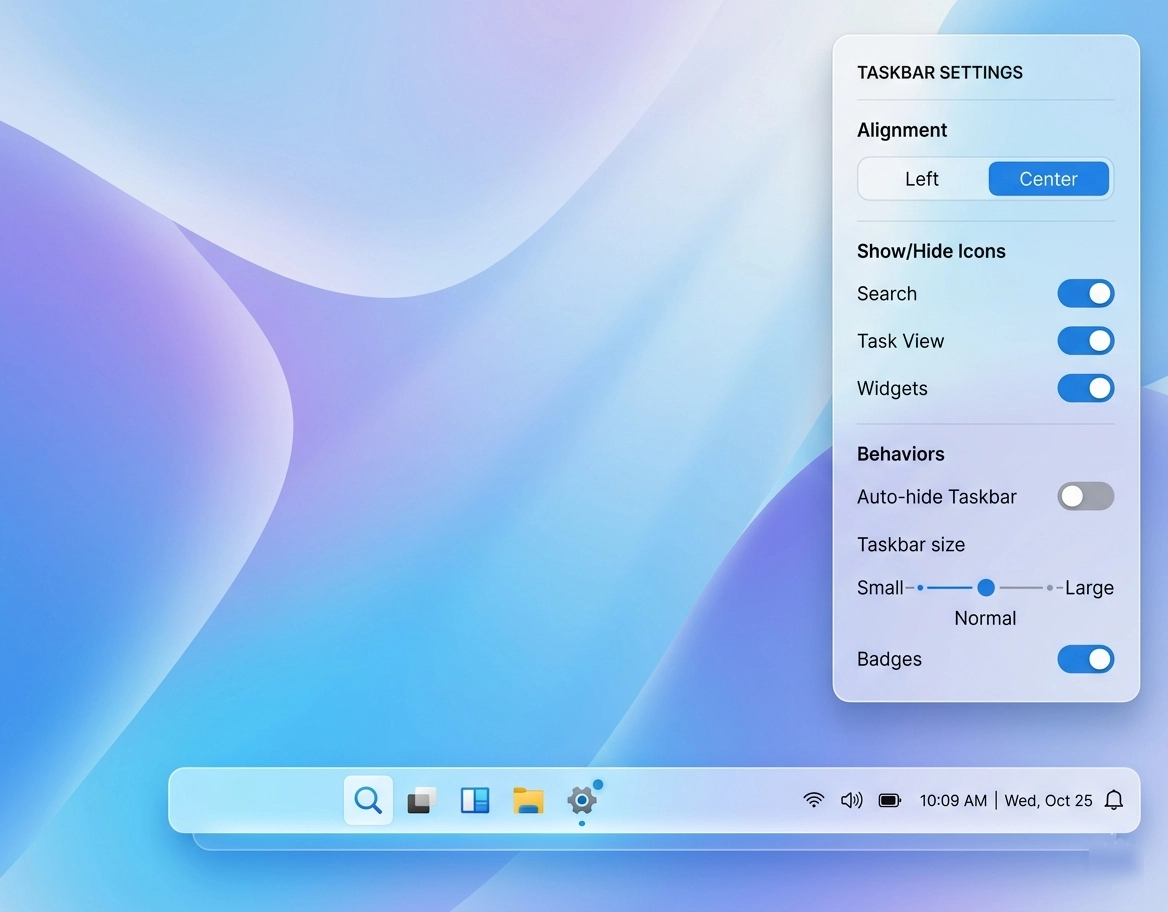
Windows 11 Taskbar Customisation (Icons, Alignment, Behaviours & More)
The Windows 11 taskbar is one of the most recognisable parts of the operating system, and fortunately, Microsoft gives you several ways to tailor it to your liking. Whether you prefer a minimalist look, a centred layout, or a more traditional left‑aligned style, the taskbar can be adjusted to suit your workflow. In this guide, we’ll walk through the key customisation options and, importantly, show you how to make the taskbar feel truly yours.
Accessing the Windows 11 Taskbar Settings
Before you begin, you’ll need to open the taskbar settings panel. To do this:
- Right‑click an empty area of the taskbar
- Select Taskbar settings
This takes you directly to the Personalisation → Taskbar page, where all the customisation options are grouped neatly. From here, you can start adjusting icons, alignment, behaviours, and more.
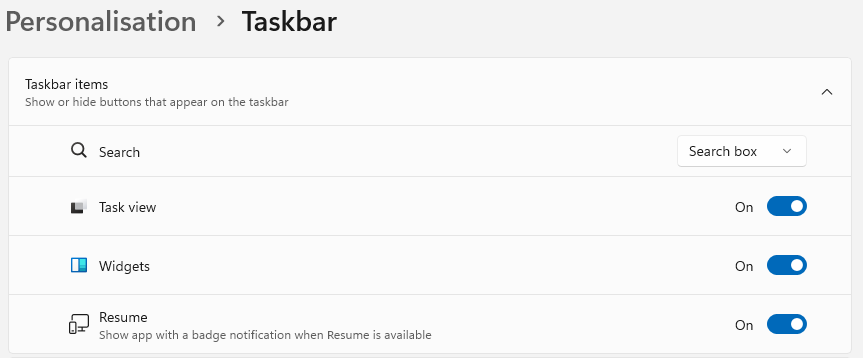
Customising Windows 11 Taskbar Icons
Windows 11 allows you to choose exactly which icons appear on the taskbar. As a result, you can keep things clean and uncluttered or make frequently used tools instantly accessible.
Taskbar Items
Under Taskbar items, you can toggle built‑in features such as:
- Search
- Task View
- Widgets
- Chat (or Copilot, depending on your build)
Simply switch each one on or off. As you make changes, the taskbar updates immediately, making it easy to see what works best.
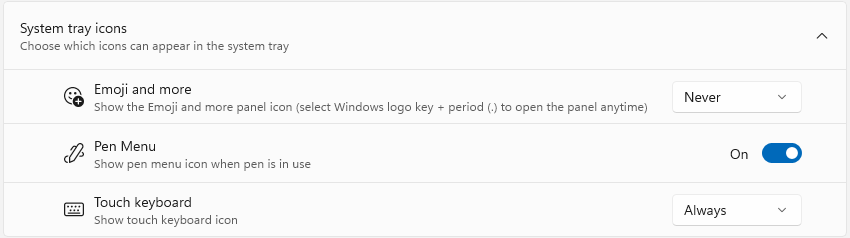
Taskbar Corner Icons
Next, you’ll find Taskbar corner icons, which control small icons that appear near the system tray. These include:
- Pen menu
- Touch keyboard
- Virtual touchpad
Although these icons are small, they can be incredibly useful if you use touch or pen‑enabled devices.
Taskbar Corner Overflow
Finally, the corner overflow section lets you decide which background apps appear in the system tray. This is especially helpful if you want to reduce visual noise or, alternatively, keep essential tools visible at all times.
Changing Windows 11 Taskbar Alignment
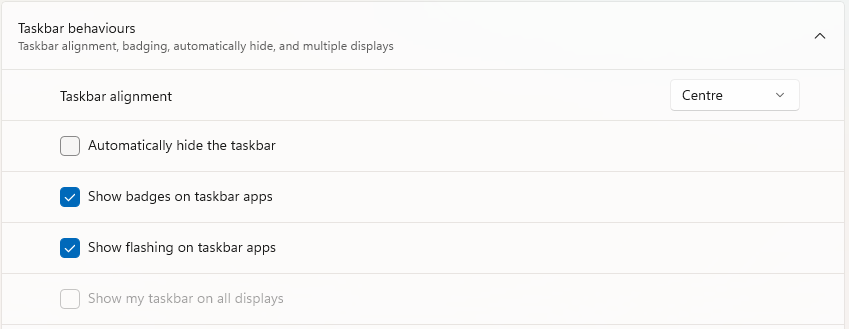
One of the most noticeable changes in Windows 11 is the centred taskbar. However, if you prefer the classic Windows look, you can easily switch it back.
- Scroll to Taskbar behaviours
- Open the dropdown
- Change Taskbar alignment to either:
- Centre
- Left
Although the centred layout feels modern, the left‑aligned option can make navigation faster for long‑time Windows users.
Managing Windows 11 Taskbar Behaviours
Beyond icons and alignment, Windows 11 includes several behavioural settings that influence how the taskbar responds as you work.
Automatically Hide the Taskbar
If you want more screen space, enable Automatically hide the taskbar. As soon as you move your mouse away, the taskbar slides out of view. Then, when you hover at the bottom of the screen, it reappears.
Show Badges on Taskbar Apps
Badges display small notification indicators on app icons. While they’re useful for messaging or email apps, you may prefer a cleaner look. Fortunately, you can toggle them on or off with a single click.
Show My Taskbar on All Displays
If you use multiple monitors, this option determines whether the taskbar appears on every screen or only on your primary display. Additionally, you can choose where app icons appear — either on all taskbars or only on the one where the window is open.
Share Window When Hovering Over Taskbar Apps
In newer builds, Windows 11 includes a feature that lets you quickly share a window during video calls by hovering over its taskbar icon. Although this is handy for Teams users, you can disable it if you prefer a simpler interface.
Pinning and Unpinning Apps
Customising the taskbar isn’t just about settings — it’s also about choosing which apps you want quick access to.
To Pin an App
- Right‑click the app in the Start menu
- Select Pin to taskbar
To Unpin an App
- Right‑click the icon on the taskbar
- Choose Unpin from taskbar
Over time, this helps you build a taskbar that reflects your daily workflow.
Using Windows 11 Taskbar Shortcuts
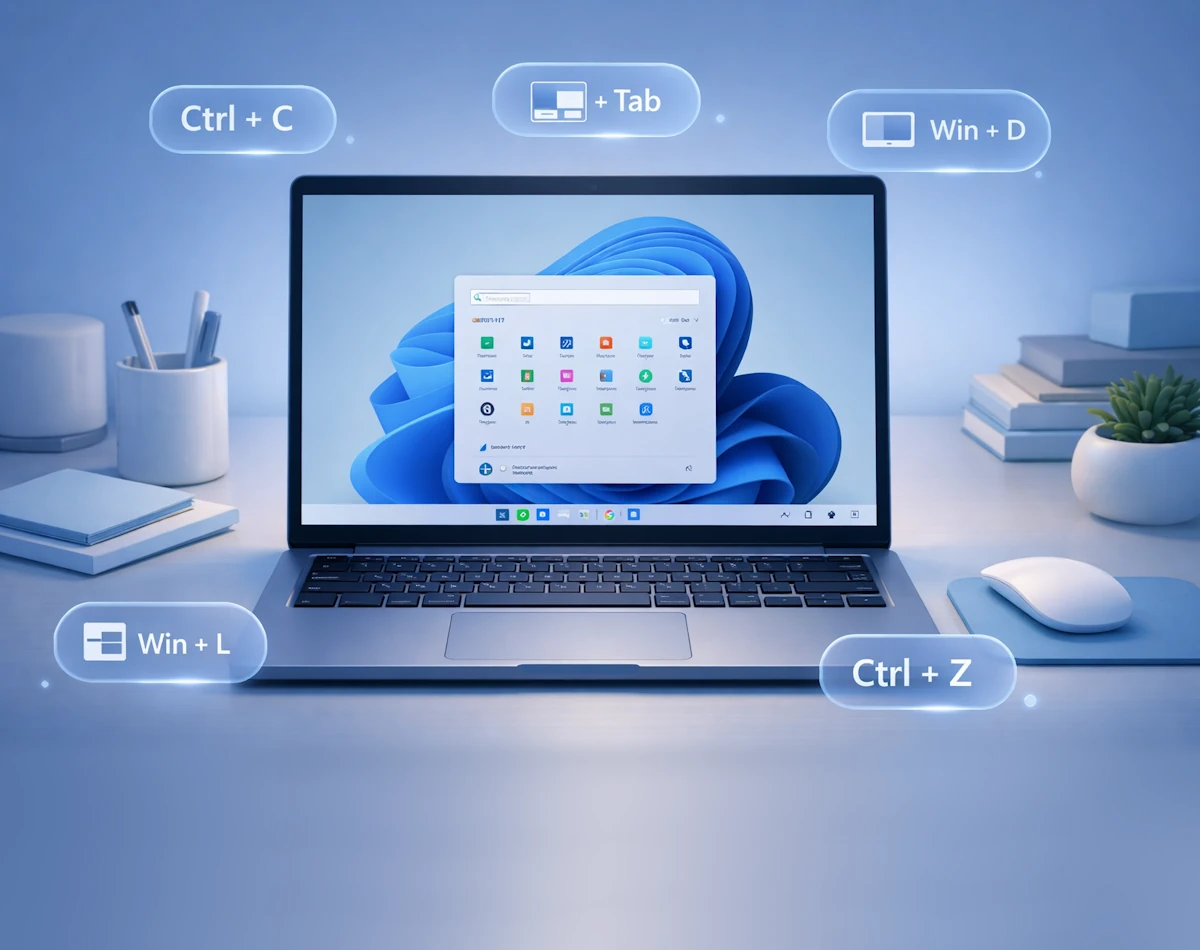
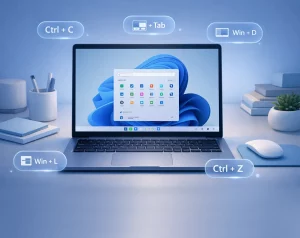
Although not strictly a customisation feature, keyboard shortcuts can make the taskbar feel more responsive. For example:
- Win + T cycles through taskbar apps
- Win + Number (1–9) opens the corresponding pinned app
As you become more familiar with these shortcuts, navigating Windows becomes noticeably faster.
Final Thoughts
The Windows 11 taskbar offers a surprising amount of flexibility. By adjusting icons, alignment, behaviours, and pinned apps, you can create a layout that feels both personal and efficient. As you continue exploring Windows 11’s customisation tools, you’ll discover even more ways to streamline your desktop and make the operating system work the way you want.
For more great Windows 11 tips, visit our Index Page