 If you want to revive an old computer (laptop or desktop) that’s gathering dust because it can’t keep up with modern software, you’re not alone. Many older PCs struggle with the demands of Windows 10 or 11, leading people to assume the hardware is “too slow” or “outdated.” In reality, the machine is often perfectly capable — it’s the operating system that’s holding it back.
This is where Linux comes in. Lightweight Linux distributions can revive an old computer into a fast, secure, and genuinely useful device again. But before you dive in, it’s worth understanding both the advantages and the potential drawbacks.
This guide explains why Linux is a great option for old computers, which distros work best, and finally, the pitfalls to watch out for.
What Makes Linux Ideal for Old or Slow Computers?
1. Lightweight Linux Distros Run Smoothly on Low‑Spec Hardware
One of the biggest reasons Linux excels on older machines is the availability of lightweight distributions designed specifically for low‑resource systems. Unlike Windows, which assumes you have modern hardware, Linux gives you options that run comfortably on:
- 1–2GB RAM
- Older dual‑core CPUs
- Small SSDs or even spinning HDDs
- Legacy graphics hardware
Popular lightweight distros include:
- Lubuntu (LXQt desktop, very efficient)
- Xubuntu (XFCE desktop, balance of speed and usability)
- Linux Lite (ideal for Windows converts)
- Peppermint OS (cloud‑focused and extremely light)
- antiX (runs on extremely old hardware)
- Puppy Linux (tiny footprint, boots fast even from USB)
These distros avoid heavy animations, background processes, and bloat — giving your old PC a new lease of life.
2. Faster Performance and Better Responsiveness
Linux is inherently lean. It doesn’t run constant telemetry, forced updates, or heavy background services. Consequently, this leads to:
- Faster boot times
- Quicker app launches
- Smoother multitasking
- Less disk thrashing on old HDDs
Even a 10‑year‑old laptop can feel surprisingly modern once Windows is replaced with a lightweight Linux distro. We regularly use Linux Mint on 12 year old MacBook Air that stopped receiving update from Apple years ago.
3. Excellent Support for Older Hardware
Linux is famous for its broad hardware compatibility. The Linux kernel includes drivers for a huge range of legacy components that Windows no longer supports.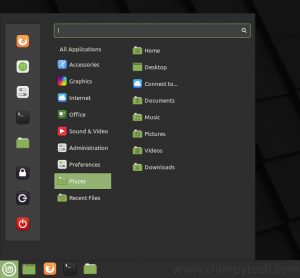
This often means:
- Wi‑Fi works out of the box
- Old graphics cards are recognised automatically
- Printers and scanners may work without extra drivers
- USB devices behave more reliably
If you’ve ever tried installing Windows on an old machine and spent hours hunting for drivers, Linux feels refreshingly simple.
4. Secure Without Needing Heavy Antivirus Software
Older PCs struggle with modern antivirus suites, which can consume huge amounts of CPU and RAM. Linux avoids this problem entirely.
Linux benefits from:
- A secure permission model
- Software repositories that reduce malware risk
- Lightweight security updates
- No need for resource‑hungry antivirus tools
This alone can dramatically improve performance on older hardware thus giving the opportunity to revive an old computer.
5. It’s Completely Free — and Extends the Life of Your Hardware
Linux costs nothing to download or install. For an old machine that might otherwise end up in landfill, this is a sustainable, cost‑effective way to keep it useful.
You can use it for:
- Web browsing
- Office work
- Media playback
- Coding
- Light creative tasks
All without spending a penny.
Common Pitfalls When Installing Linux on an Old Computer
Linux is powerful, but it isn’t perfect. Here are the main issues people encounter.
1. Not All Software Is Available on Linux
If you rely on Windows‑only applications, you may hit compatibility issues. Examples include:
- Adobe Creative Cloud
- Some accounting software
- Specialist business tools
- Certain games
Workarounds like Wine, Proton, or virtual machines exist, but they’re not always seamless.
For general users who mainly browse the web, stream video, and use office apps, this isn’t a problem. But for niche software, Linux may not be ideal.
2. Some Hardware Drivers Can Be Tricky
Although Linux supports a huge range of hardware, there are exceptions:
- Older Broadcom Wi‑Fi chipsets
- Certain multifunction printers
- Proprietary NVIDIA drivers
- Touchpads on very old laptops
Most issues have solutions, but they may require a bit of research — or occasionally, a terminal command.
3. There’s a Learning Curve for New Users
Linux is far more user‑friendly than it used to be, but it still works differently from Windows. You may need to adjust to:
- Different system settings
- A new software installation process
- Occasional terminal use
- Different keyboard shortcuts
For many people, this learning curve is small — but it’s worth acknowledging.
4. Gaming Support Is Good, But Not Perfect
Thanks to Steam’s Proton compatibility layer, thousands of Windows games now run on Linux. But:
- Some anti‑cheat systems still cause issues
- Not all titles are supported
- Performance varies on older hardware
If the machine is for casual use, this won’t matter. But if you’re hoping to turn a 12‑year‑old laptop into a gaming rig, expectations need to be realistic.
5. Choosing the Wrong Distro Can Lead to Frustration
Not all Linux distributions are suitable for older hardware. Installing something heavy like Ubuntu GNOME or KDE Plasma on a low‑spec machine can feel slower than Windows.
For older PCs, stick to lightweight options such as:
- Lubuntu
- Xubuntu
- Linux Lite
- Peppermint OS
Choosing the right distro makes all the difference.
Who Should Install Linux on an Old Computer?
Linux is a great choice if you want to:
- Revive an old computer that won’t run the latest Operating System.
- Avoid buying a new computer
- Reduce e‑waste
- Use the machine for everyday tasks
- Learn something new
- Gain more control over your system
On the contrary, it’s less ideal if you rely heavily on Windows‑only software or specialist hardware.
Which version of Linux Should I Choose?
This is the sixty-four million dollar question. There are so many to choose from that it would be impractical to test them all. Given that most people will be coming to Linux from a Windows or MacOS background, the three versions that we would recommend are:
- Ubuntu – The grand daddy of them all (https://ubuntu.com/download/desktop)
- Linux Mint – Easy transition from Windows (https://www.linuxmint.com/)
- Zorin O.S. – Easy transition from Windows or MacOS (https://zorin.com/)
These are just a very small selection of the 1000’s of distro’s that are available, so do some research, and you may find something that better suits your needs. One of the features of Linux is its ability to run from a ‘live’ USB stick without the need to install it on a hard drive. This is especially useful for testing the various distros available for compatibility etc., before committing to a full install. Creating a live USB is beyond the scope of this article, but most good distros have a page explaining how to do it.
Final Thoughts: Is Linux Worth Installing on an Old PC?
Absolutely, installing Linux is one of the most effective ways to breathe new life into an old computer. It’s fast, secure, lightweight, and above all, completely free. As a result, with the right distribution, even a decade‑old machine can feel responsive and useful again.
While there are pitfalls — mainly around software compatibility and occasional driver quirks — most users find the benefits far outweigh the drawbacks.
If you’ve got a bunch of old hardware gathering dust, Linux might be the perfect way to revive an old computer and bring it back to life.
Looking for more Linux articles? – Check out our Index Page