A Clear Guide for Windows, macOS, and Linux Users
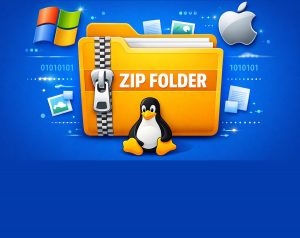
ZIP files are everywhere — in downloads, email attachments, backups, and software packages. They’re one of the simplest ways to compress and bundle files, yet many people only have a rough idea of what they actually do. Whether you’re on Windows, macOS, or Linux, ZIP files behave in broadly the same way, but each operating system handles them slightly differently.
This guide breaks down what ZIP files are, how they work, and in addition, how to use them effectively across all three major platforms.
What Exactly Is A ZIP File?
A ZIP file is a compressed archive — a single file that contains one or more files or folders, and at the same time is often reduced in size. It’s like packing several items into a suitcase so you can carry them as one compact bundle.
ZIP files serve two main purposes:
- Compression: Making files smaller.
- Archiving: Grouping multiple files into one tidy package.
The ZIP format is open, widely supported, and built directly into Windows, macOS, and most Linux distributions.
How ZIP Compression Works (The Simple Version)
ZIP uses lossless compression, meaning the original data can be perfectly restored when unzipped.
Here’s the basic idea:
1. It finds patterns
Most files contain repeated data — repeated words in text, repeated colours in images, repeated values in logs.
2. It replaces repetition with shortcuts
Instead of storing the same information multiple times, ZIP stores it once and references it.
3. It stores a “map”
This dictionary tells the system how to rebuild the original file during extraction.
Because nothing is thrown away, the extracted file is identical to the original.
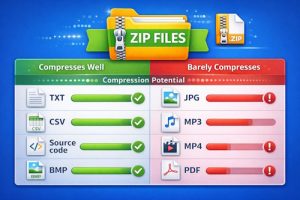
Why Some Files Shrink and Others Don’t
Compression works best when there’s lots of repetition.
Compresses well:
- Text files
- Spreadsheets
- Source code
- Logs
- Old bitmap images
Barely compresses:
- JPEGs
- MP3s
- MP4 videos
- PDFs
- Modern Office files (.docx, .xlsx — already ZIP containers internally)
If a file is already compressed, zipping it again won’t help much.
What’s Inside a ZIP File?
A ZIP file contains:
1. A list of files
Including names, timestamps, sizes, and checksums.
2. Compressed data blocks
Each file is compressed separately, therefore you can extract individual files without unpacking the whole archive.
3. A central directory
A table of contents that tells the system where everything is stored.
This structure makes ZIP files reliable and easy to work with across different operating systems.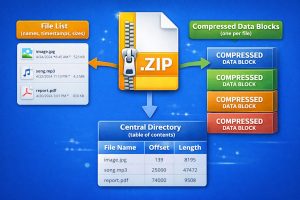
Using ZIP Files on Windows, macOS, and Linux
Each OS supports ZIP files natively, but the tools and menus differ slightly. Here’s how to work with them on each platform.
Windows: Built‑In Support
Windows treats ZIP files almost like folders.
Create a ZIP
- Select files/folders.
- Right‑click → Send to → Compressed (zipped) folder.
Extract a ZIP
- Right‑click → Extract All…
- Or drag files out of the ZIP window.
Windows’ built‑in ZIP tool is basic but perfectly fine for everyday use.
macOS: Quick and Simple
macOS includes a tool called Archive Utility, which handles ZIP files automatically.
Create a ZIP
- Select files/folders.
- Right‑click → Compress Items.
macOS creates a file called Archive.zip (or similar) in the same folder.
Extract a ZIP
- Double‑click the ZIP file.
- macOS automatically extracts it into a new folder.
macOS hides the complexity — it just works.
Linux: Flexible and Powerful Support
Most Linux distributions include ZIP support, but the tools vary depending on the desktop environment.
On GNOME (Ubuntu, Fedora, etc.)
The Files app (Nautilus) supports ZIP out of the box.
Create a ZIP:
- Select files/folders.
- Right‑click → Compress…
- Choose .zip.
Extract a ZIP:
- Right‑click → Extract Here
- Or double‑click to open it in the archive manager.
On KDE Plasma
Dolphin includes similar options:
- Right‑click → Compress → As ZIP Archive
- Right‑click → Extract → Extract Here
Using the Terminal (works everywhere)
Linux users often prefer the command line for speed and automation.
Create a ZIP:
zip -r archive.zip foldername
Extract a ZIP:
unzip archive.zip
Linux gives you the most control, especially for scripting and automation.
Password‑Protected ZIP Files
ZIP files can be encrypted, but the built‑in encryption in Windows and older ZIP tools is old and is consequently weak by modern standards.
For strong encryption, use:
- 7‑Zip (Windows/Linux)
- Keka (macOS)
- PeaZip (cross‑platform)
These tools support AES‑256, which is far more secure.
Common Uses for ZIP Files
ZIP files remain popular because they solve everyday problems:
- Sending multiple files in one attachment
- Reducing upload/download times
- Backing up project folders
- Packaging software for distribution
- Moving files between operating systems without compatibility issues
ZIP is universal — every OS understands it.
Limitations of ZIP Files
ZIP is great, but not perfect.
1. Compression isn’t always the best
Formats like 7z or RAR can compress certain files more efficiently.
2. Not ideal for huge datasets
Although modern ZIP tools support large archives, formats like tar.gz are often better for multi‑gigabyte collections.
3. Weak legacy encryption
Never rely on old ZIP passwords for sensitive data.
4. Corruption risk
If a ZIP file becomes damaged, recovery isn’t guaranteed.
Alternatives to ZIP
| Format | Strengths | Weaknesses |
|---|---|---|
| 7z | Excellent compression, strong encryption | Not built into any OS |
| RAR | Good compression, recovery records | Requires WinRAR |
| tar.gz | Great for large datasets, common on Linux | Not native on Windows |
ZIP remains the best all‑rounder for compatibility.
Final Thoughts
ZIP files are one of the quiet workhorses of modern computing. They make files smaller, keep things organised, and still work seamlessly across Windows, macOS, and Linux. Even though the format is decades old, it remains the simplest and most universal way to bundle and compress data.
Whether you’re emailing documents, backing up your system, or downloading software, understanding how ZIP files work — and how each OS handles them — helps you work more efficiently and avoid common pitfalls.