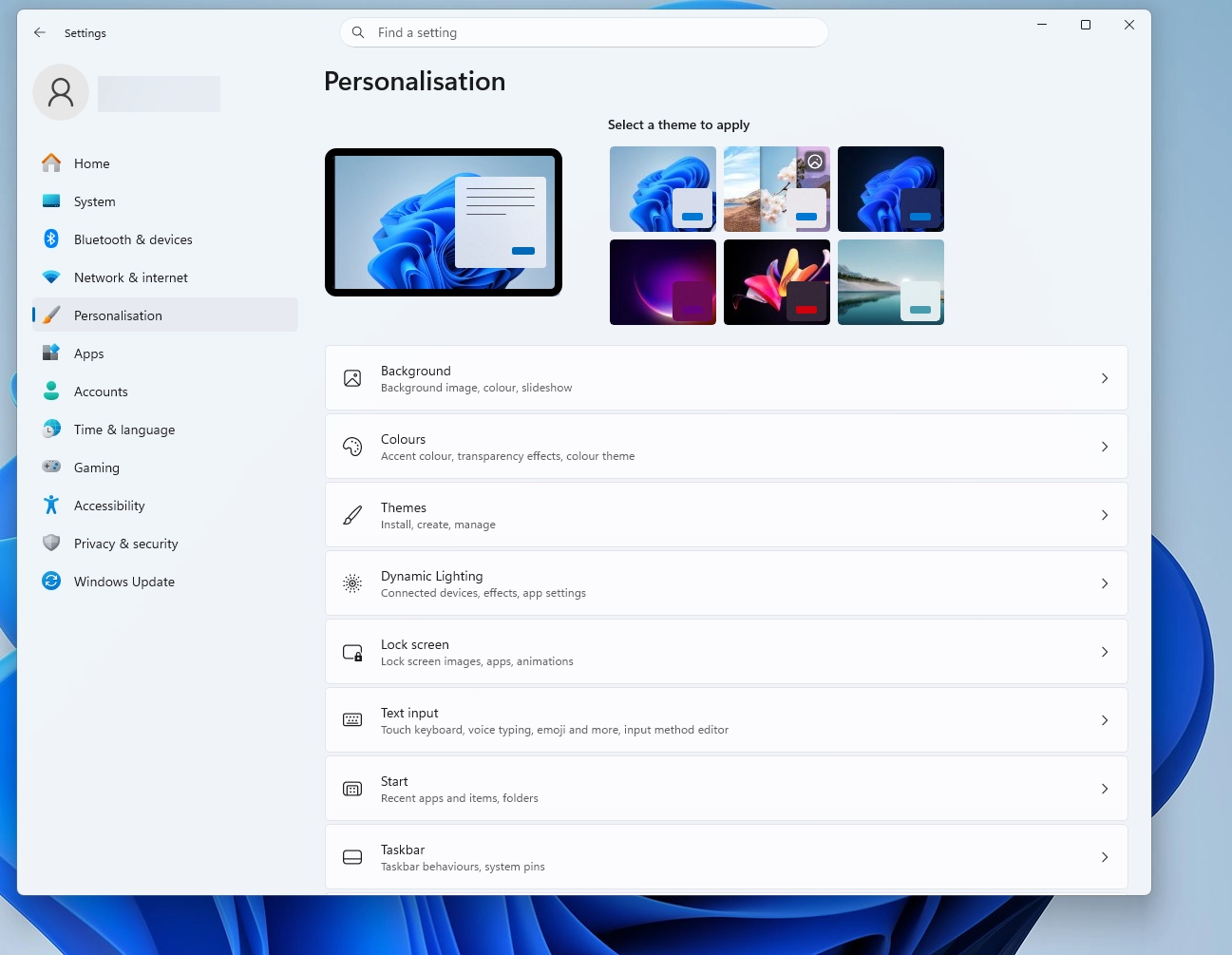
Windows 11 Personalisation: Themes, Wallpapers, Accent Colours
Windows 11 Personalisation gives you far more control over how your PC looks and feels, and as you explore this section of the Settings app, you’ll quickly notice just how many visual tweaks are available. In this part of the series, we’ll walk through the three core elements you’ll use most often: themes, wallpapers, and accent colours.
Because these options all work together, understanding each one individually helps you build a setup that feels uniquely yours.
🎨 Themes: Your Starting Point
Themes act as a complete visual package. They bundle together your wallpaper, accent colour, sounds, and sometimes even mouse cursor styles. As a result, switching themes is the quickest way to give your desktop an instant makeover.
How to Access Themes
- Open Settings
- Select Personalisation
- Click Themes
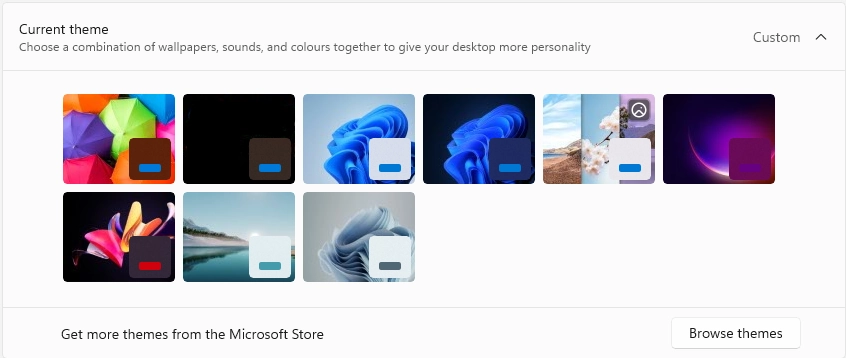
Once you’re there, you’ll see several built‑in themes. Additionally, Windows 11 links directly to the Microsoft Store, allowing you to download more options whenever you want.
Why Themes Matter
Themes are especially useful if you like consistency. For example, if you prefer a darker look, choosing a dark theme automatically adjusts multiple elements at once. Conversely, if you enjoy bright, colourful designs, a light or vibrant theme sets the tone immediately.
🖼️ Wallpapers: The Centrepiece of Your Desktop
Although themes provide a foundation, your wallpaper is often the first thing you notice when you sit down at your PC. Therefore, choosing the right background can make a surprising difference to your overall experience.
Changing Your Wallpaper
From Personalisation, select Background. Here, you can choose from:
- Picture – a single static image
- Slideshow – a rotating set of images
- Solid colour – simple and distraction‑free
- Windows Spotlight – automatically updated images from Microsoft
If you want something dynamic, slideshow mode is ideal. On the other hand, if you prefer a clean workspace, a solid colour keeps things minimal.
Tips for Better Wallpapers
- High‑resolution images look sharper, especially on large monitors
- Dark wallpapers pair well with dark mode for a cohesive look
- Light wallpapers can make your desktop feel more open and airy
- Using your own photos adds a personal touch
🌈 Accent Colours: Subtle but Powerful
Accent colours influence the small but important details across Windows 11 — for instance, the colour of buttons, highlights, and certain interface elements. Even though these changes seem minor, they can dramatically shift the overall mood of your desktop.
Where to Find Accent Colour Settings
Go to Personalisation → Colours.
Here, you can:
- Choose a colour manually
- Allow Windows to pick a colour based on your wallpaper
- Decide whether the accent colour appears on title bars and window borders
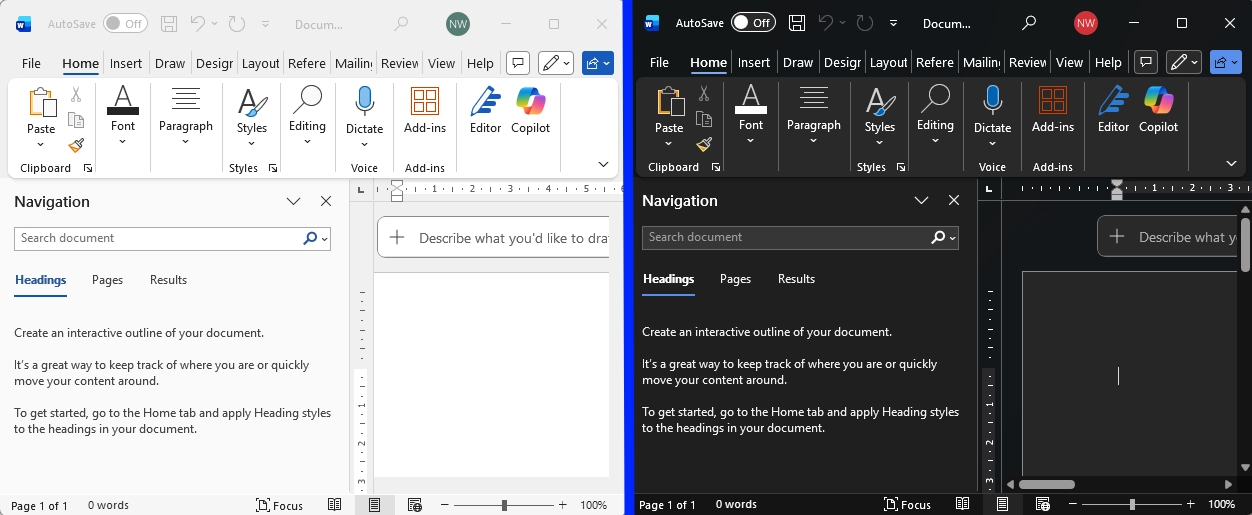
- Switch between Light, Dark, or Custom mode
Choosing the Right Accent Colour
If you want a coordinated look, letting Windows match your wallpaper is a great starting point. Alternatively, selecting your own colour gives you more control. For example, a bold accent colour can make interface elements stand out, whereas a muted tone creates a calmer environment.
🧩 How These Elements Work Together
Although you can customise each setting individually, combining them thoughtfully creates the best results. For instance:
- A dark theme + a deep blue wallpaper + a teal accent colour
- A light theme + a pastel wallpaper + a soft pink accent colour
- A custom theme + your own photos + a matching accent colour
As you experiment, you’ll notice how one change often influences another. Consequently, it’s worth trying a few combinations until everything feels just right.
✔️ Final Thoughts
Windows 11 Personalisation isn’t just about making your desktop look nice — it’s about creating a space that feels comfortable, familiar, and enjoyable to use. Whether you prefer bold colours, minimalist designs, or something in between, the Themes, Wallpapers, and Accent Colours sections give you all the tools you need.
For more tips on all things Windows 11 visit our Index Page